Change Access
Follow the steps below to change the user access:
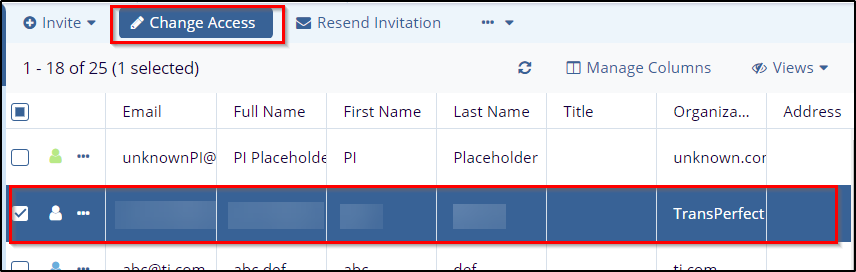
- Select the user(s) from the list for whom to update access.
- Click Change Access from the menu ribbon above the grid. The Change Access pop-up window will open.
-
From the Role dropdown, choose the required role:
-
Administrator
-
Manager
-
Editor
-
Reader
-
Access Revoked
-
-
Select the required Group(s) from the list, use the checkboxes to assign the user to the correct group(s).
-
Under Existing group access action, choose one option:
-
Append (adds new group access along with existing access)
-
Overwrite (replaces the existing access with the newly selected access)
-
-
Click Apply to save the access changes.