
Revoke and Restore Access
The Revoke Access option removes the selected user’s access to the study/room, preventing them from logging in or performing any further actions.
Revoke User Access
Follow the steps below to revoke user access:
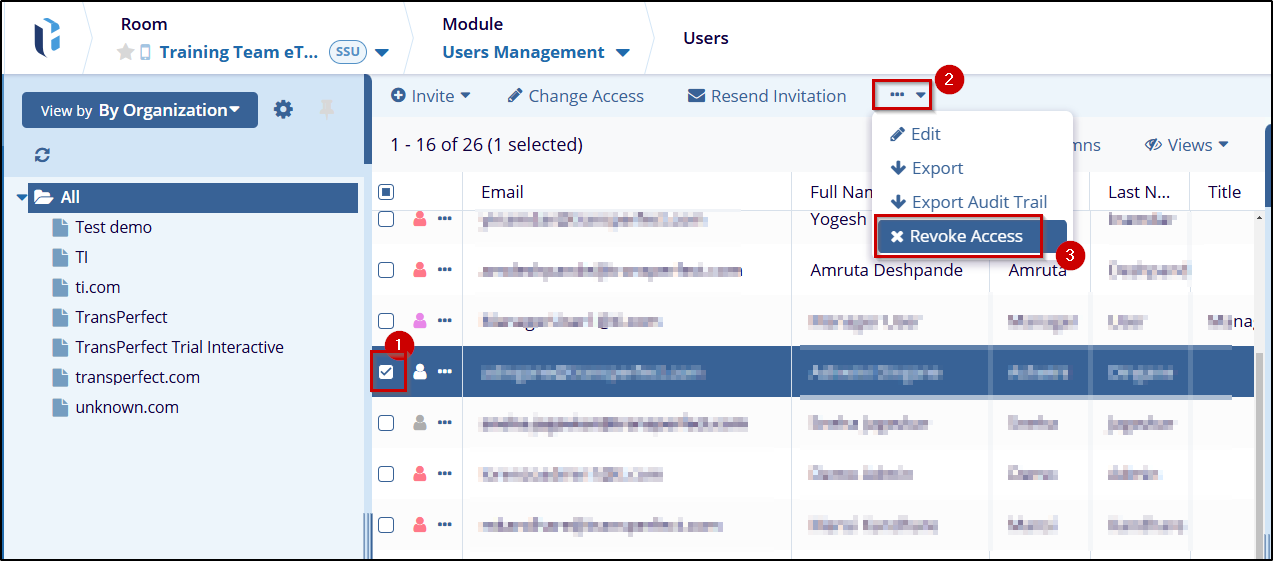
- Navigate to User Management → Users.
- Select the users whose information want to export.
- Click the three dots from the top ribbon bar and then click Revoke Access from the
options.
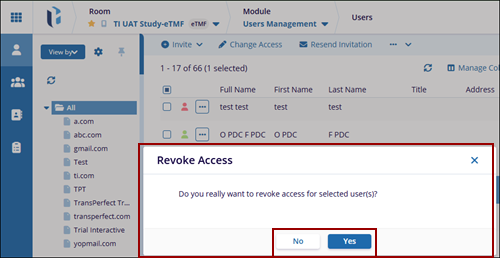
- The Revoke Access confirmation window appears. Select Yes to proceed with the
revoke access process, or choose No to cancel.
-
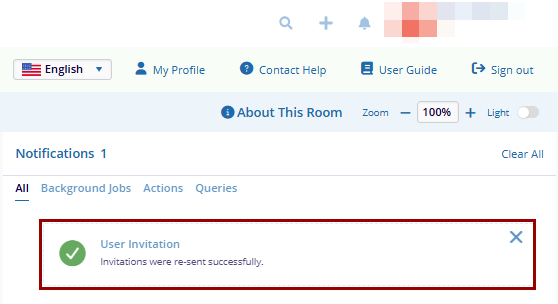
Once you click Yes, a notification window appears confirming that the selected user's permissions have been successfully revoked.
Restore User Access
The Restore Access option re-enables access for a previously revoked user, allowing them to log in again and continue working based on their assigned role and permissions.
Follow the steps below to restore user permission:
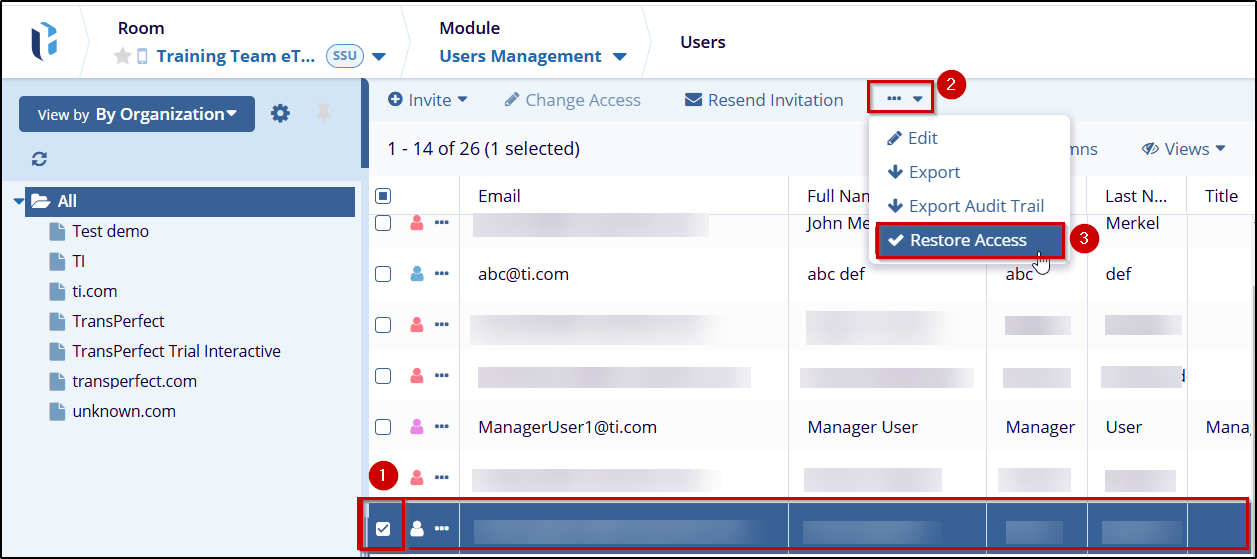
- Select the users whose information want to export.
- Click the three dots from the top ribbon bar and then click Restore Access from the
options.
- The Restore Access Reason confirmation window appears. Enter a reason for restoring
access, then click OK to proceed with the process, or choose Cancel to exit.
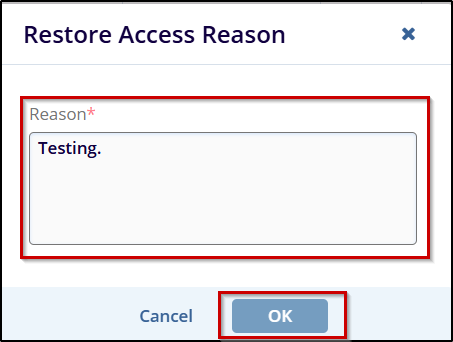
- After confirmation, a notification window will appear, confirming that the selected user's
permissions have been successfully restored.


