Export
The Export option allows administrators to download the user list and related user details for offline review, reporting, or documentation purposes. This feature is useful for maintaining records of users added to the study/room and their assigned access information.
Exporting Selected User Profile Information
Follow the steps below to export user profile information:
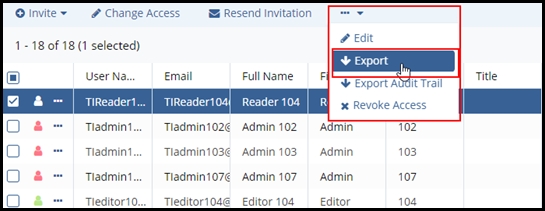
- Navigate to User Management → Users.
- Select the users whose information want to export.
- Click the three dots from the top ribbon bar and then click Export from the
options.
- The Export Users pop-up opens with the Export Selected Users radio button selected by default. If required, the user can select the Export All Users radio button to export the complete users list.
- Select the Type of export file format, the user can select HTML, Microsoft Excel, or
Microsoft Word.
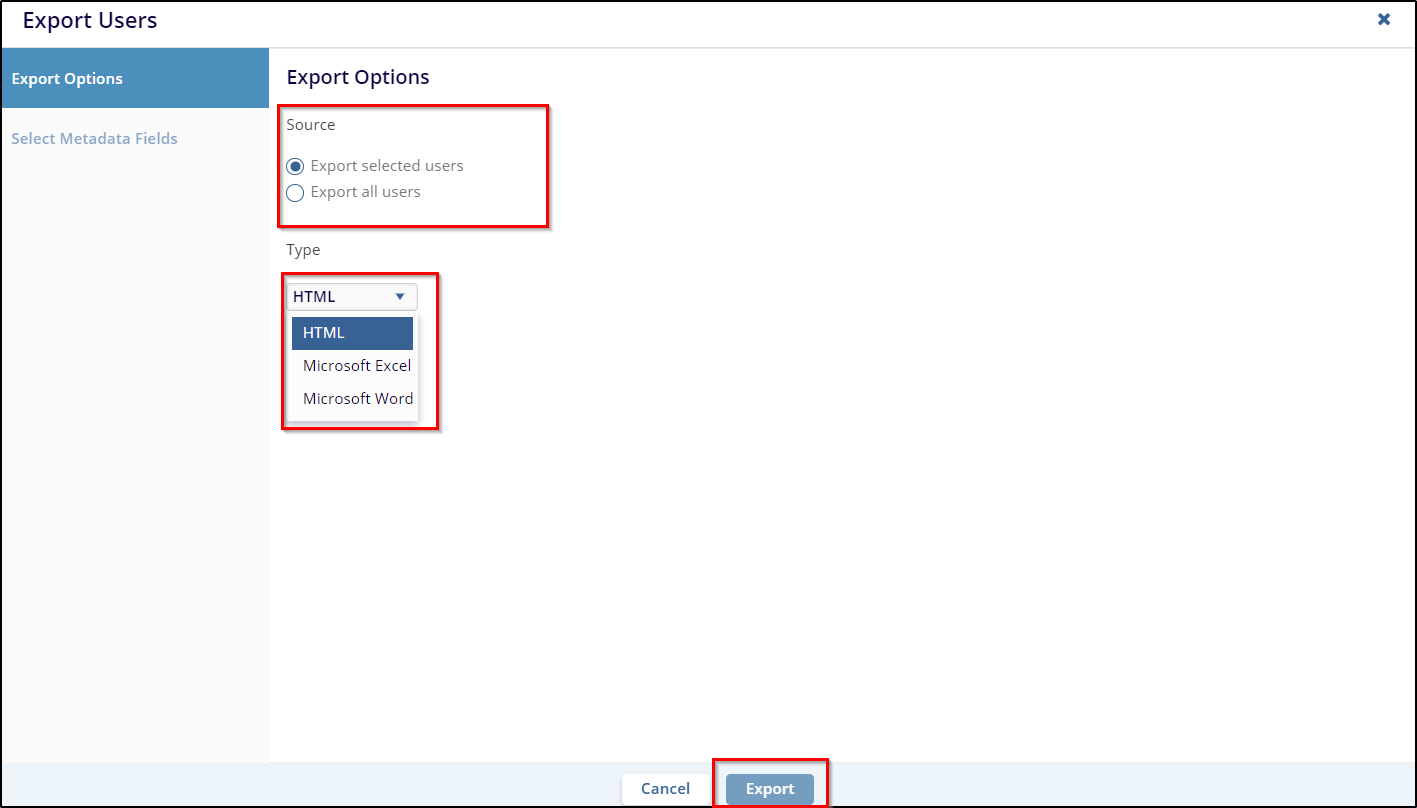
- Click Export.
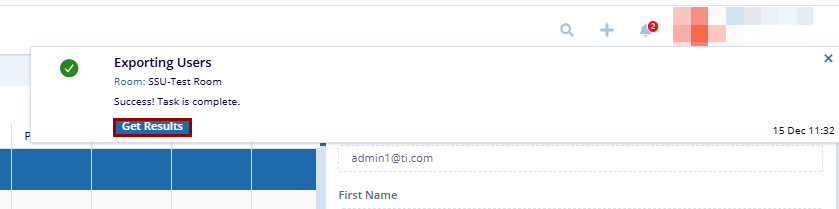
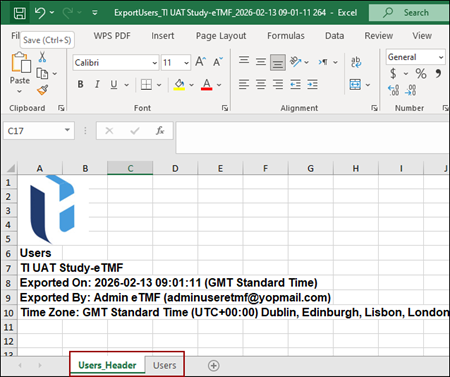
- The user will receive a notification about the job completion. Click Get Results to
download the document.
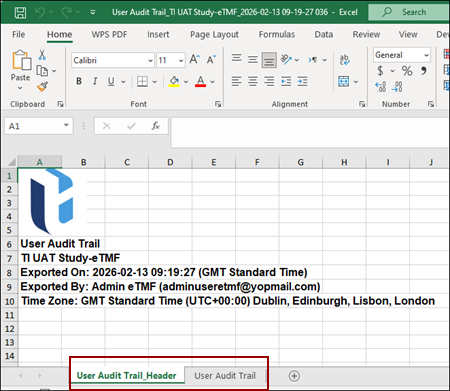
Export Audit Trail
Follow the steps below to export audit trail:
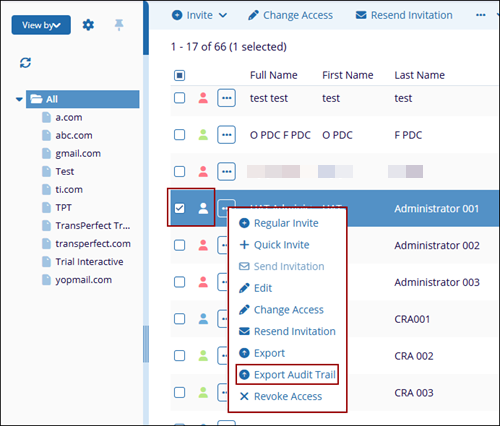
- Select the users whose information want to export.
- Click the three dots and then click Export Audit Trail from the options.
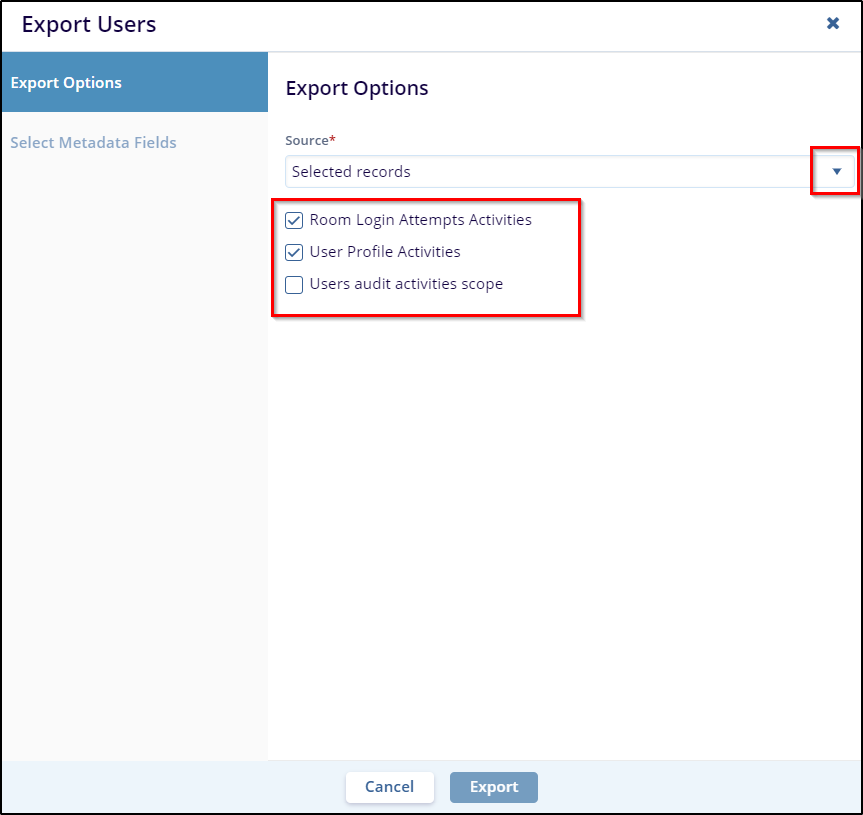
- The Export Users window will open.
- Use the options given to identify which user data selection should be exported, when the user completed setting export criteria.
- Click the Export button.
- The user will receive a notification about the job completion. Click Get Results
to download the document.