Invite Users
Explore Job Aids and Videos for more help:
Job Aids
Videos
Regular Invite
Follow the below steps for inviting new users using the Regular Invitation method:
- Navigate to Users Management via the navigation grid → Users Management →
Users.
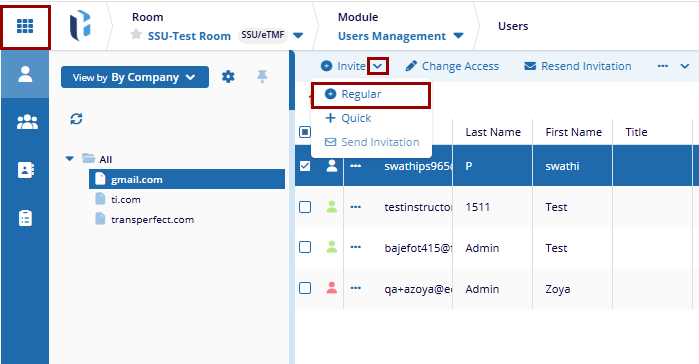
- Click the Invite dropdown in the top menu bar, then select Regular from the list.
- The User Invitation pop-up window is displayed, fill in the required details within
the users tab.
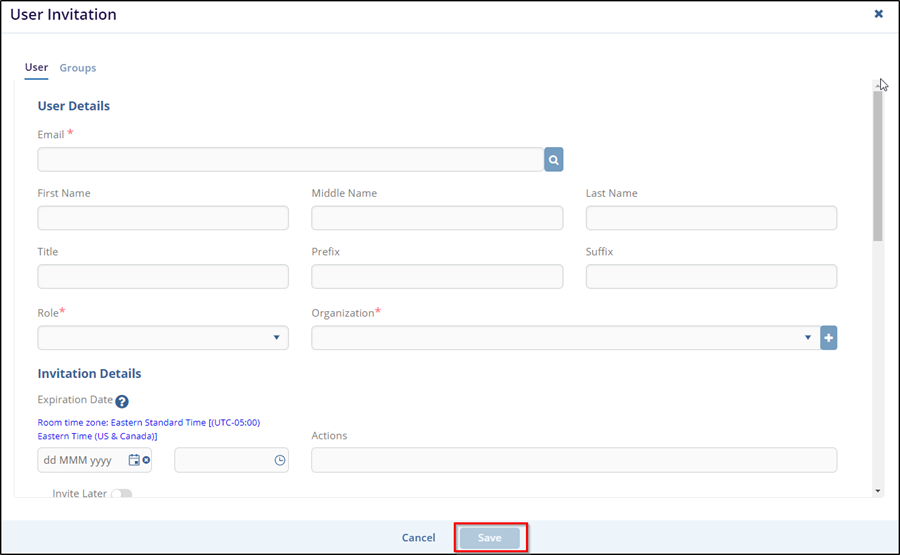
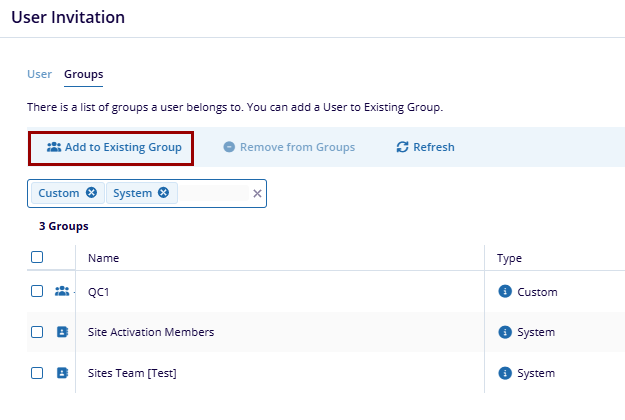
- Assign Groups (Optional): To assign the user to a group, click on the Groups tab on the User Invitation page.
- On the Groups page, the user can be added to the existing group, remove from the group, or
search for the specific group too.
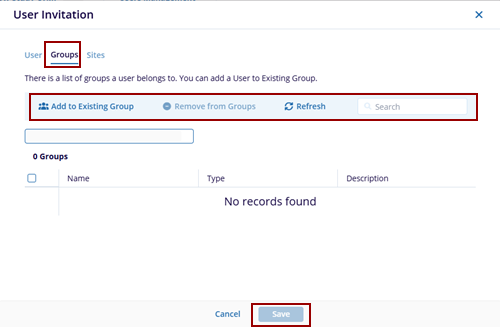
- Select Add to Existing Group from the top.
- The Add to Existing Group window will appear. Select the group(s) by checking the
corresponding checkboxes. You can also search for a group from the left side of the screen.
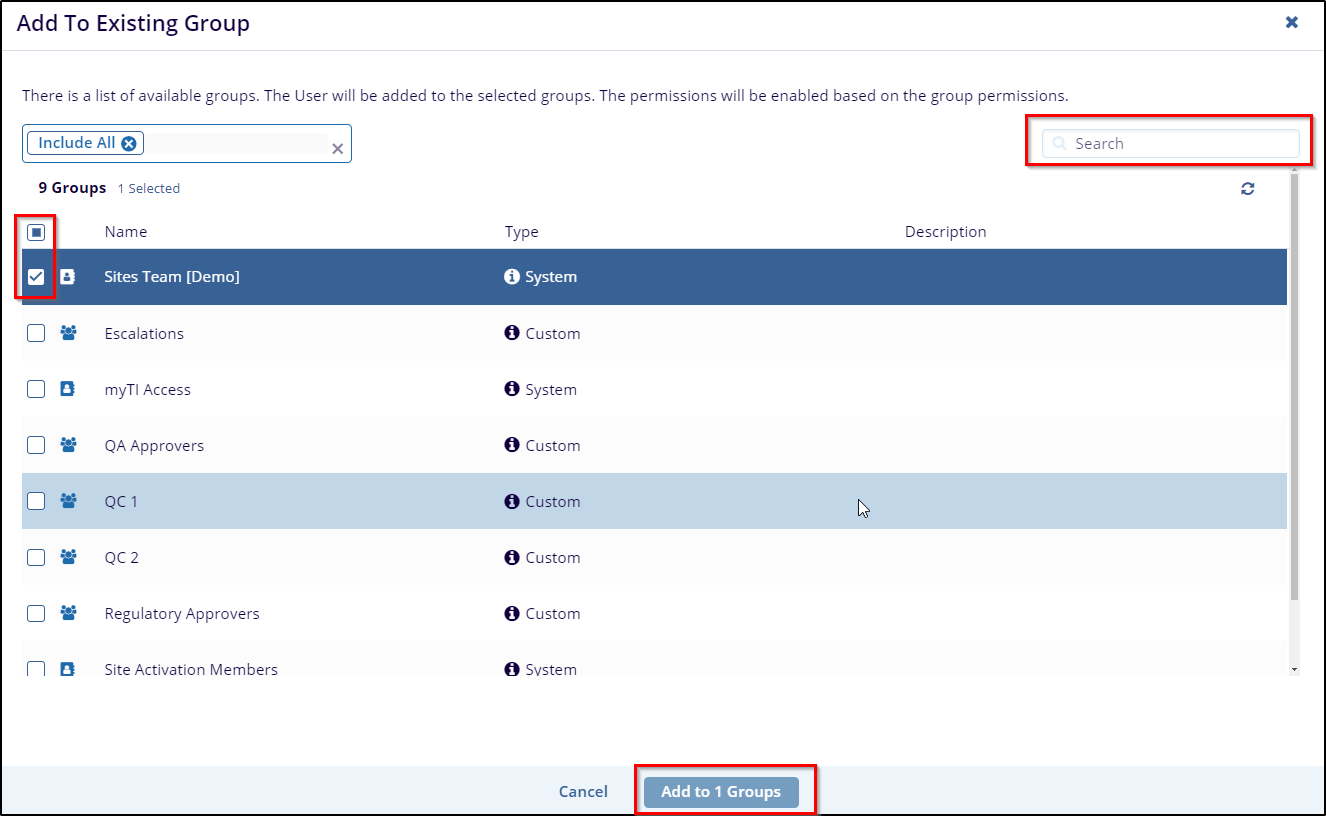
- Once selected the required groups, click on the Add to Group button at the bottom.
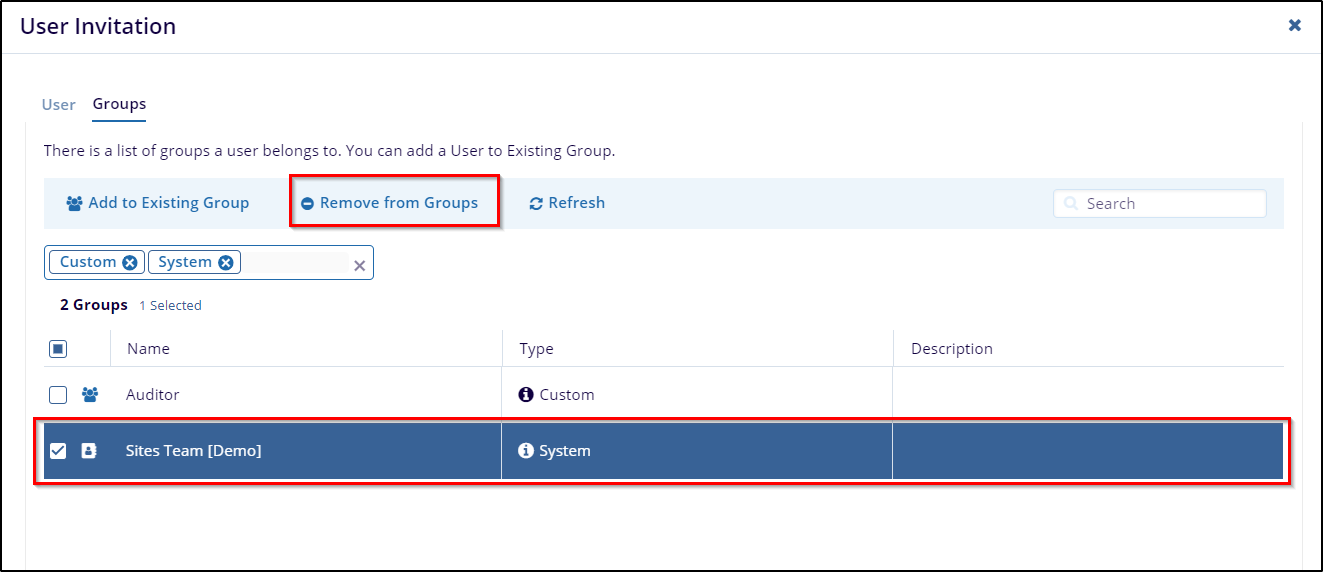
- To remove the user from a group, check the group’s checkbox and click on the
Remove from Group button at the top.
- After assigning the user to the group(s), return to the User Invitation screen and click Save to complete the process.
- Add to Existing Group window will appear, select the group by clicking on the checkbox and click on the Add to Group button from the bottom. Additionally, the user can search the group as well in the Search field..
- To remove the user from the group, click on the checkbox of the group and click the
Remove from Groups button from the top.
.png)
- Click the Sites tab on the User Invitation page to add the user to the sites where
they should be included as a Site Contact.
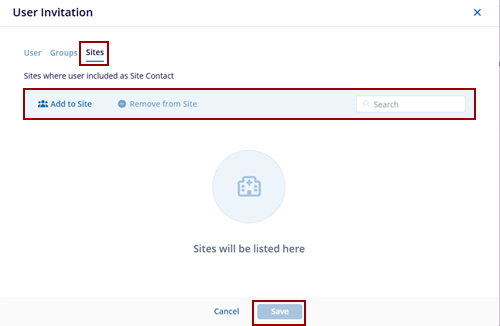
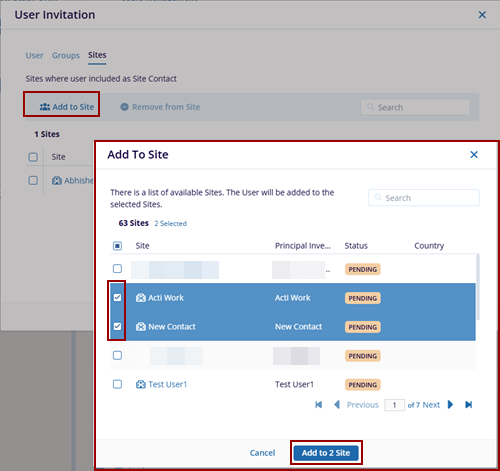
- Select Add to Site button. The Add To Site pop-up window is displayed with the list
of the sites. Once selected the required site, click on the Add to Site button at the
bottom.
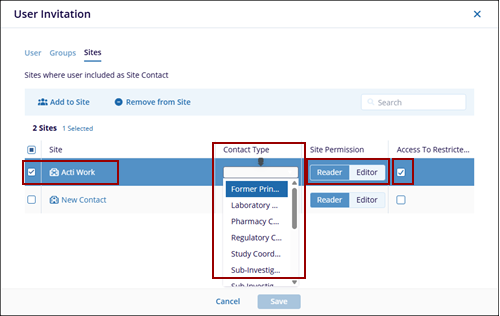
- The selected users are added to the site, here the user can provide a Contact Type from
the drop-down list, gives Site Permission (Reader/Editor), and Access To Restricted
Documents.
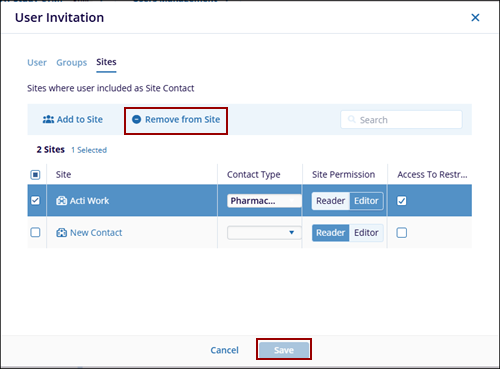
- To remove the user from a group, check the group’s checkbox and click on the Remove
from Site button at the top. Click save to save the changes.
Quick Invite
The user can use the Quick Invite to invite multiple users at the same time by assigning them the same role, permissions/actions, access period, and group membership in a single step.
Follow the below steps for inviting new users using the Quick Invitation method:
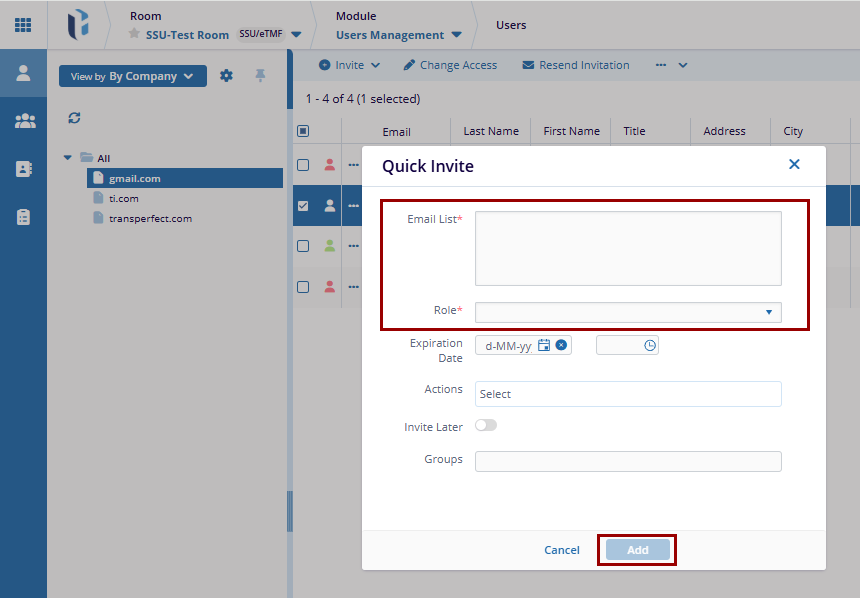
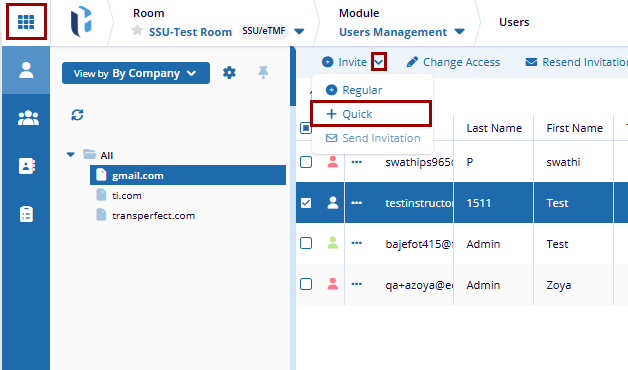
- Click the Invite dropdown from the top menu bar and select Quick from the
list of options that appear.
- The Quick Invite pop-up window opens. Enter the email addresses of the users need to be created.
- Fill in the required fields by entering the email addresses for each user and selecting the common role that will be assigned to all invited users. Additionally, the user can provide a special access like Sponsor or Regulatory Agency Inspector.
- Select the Invite Later if appropriate.
- Click the Groups text box to assign the users to any appropriate groups.
- Click Add button. The User(s) invited successfully notification message is
displayed.