
Edit User’s Profile
User access can be adjusted at any time from the User’s Management module. Follow these steps to edit a user's profile:
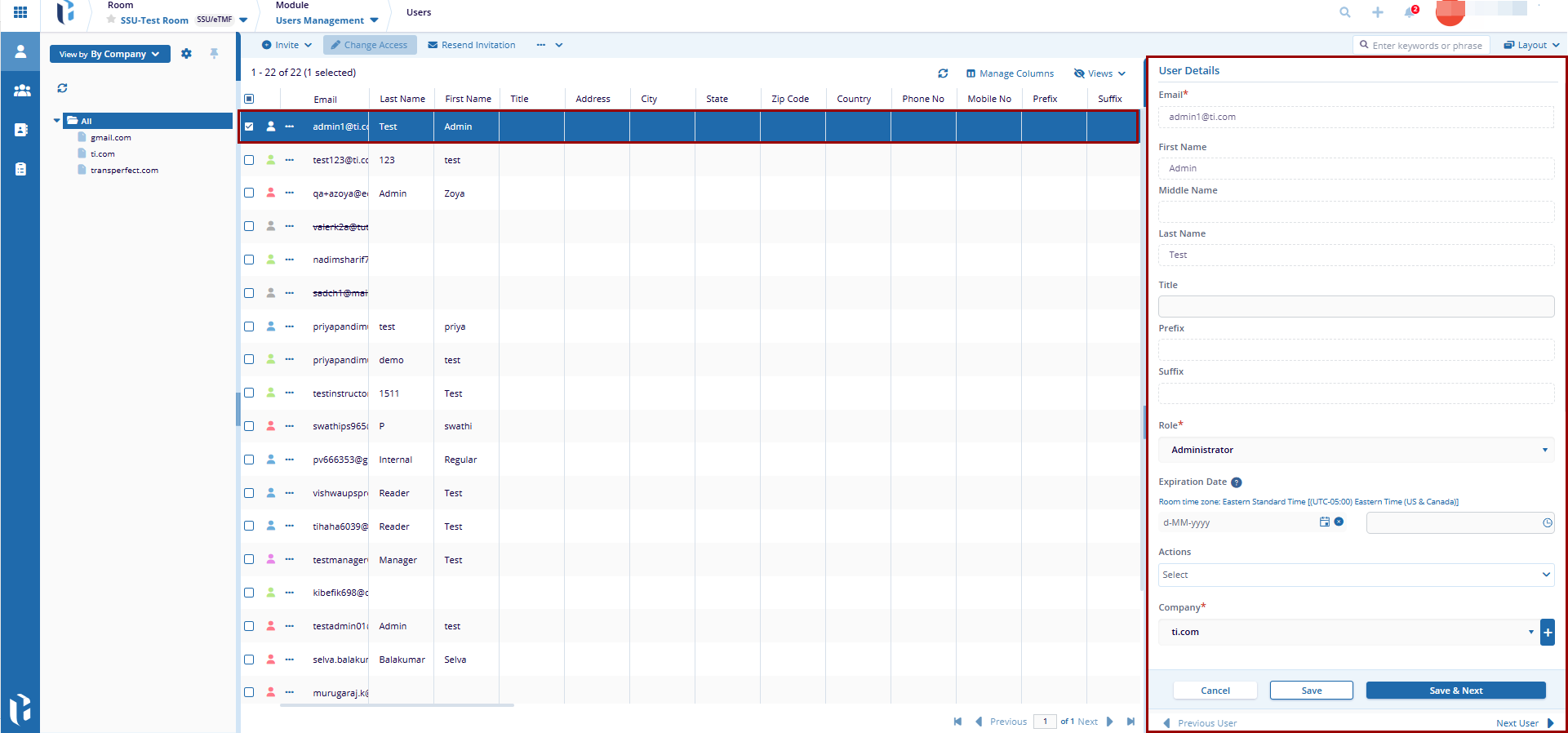
- Select the checkbox next to a user from the displayed list. This opens the User
Details metadata panel on the right, where the user can update the required fields
directly.
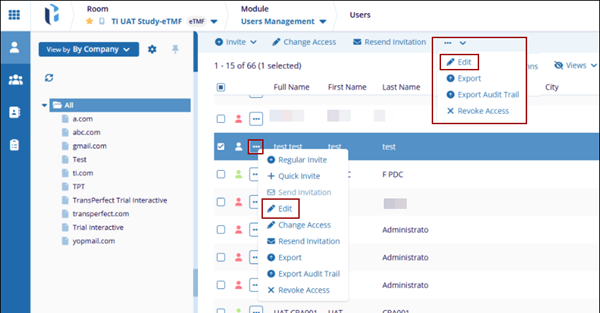
- Alternatively, click the three-dot menu next to the user’s name, or use the
three-dot menu in the top toolbar, to view the available user account actions. From the
menu, select Edit to update the user details, groups, sites, and activity
log.
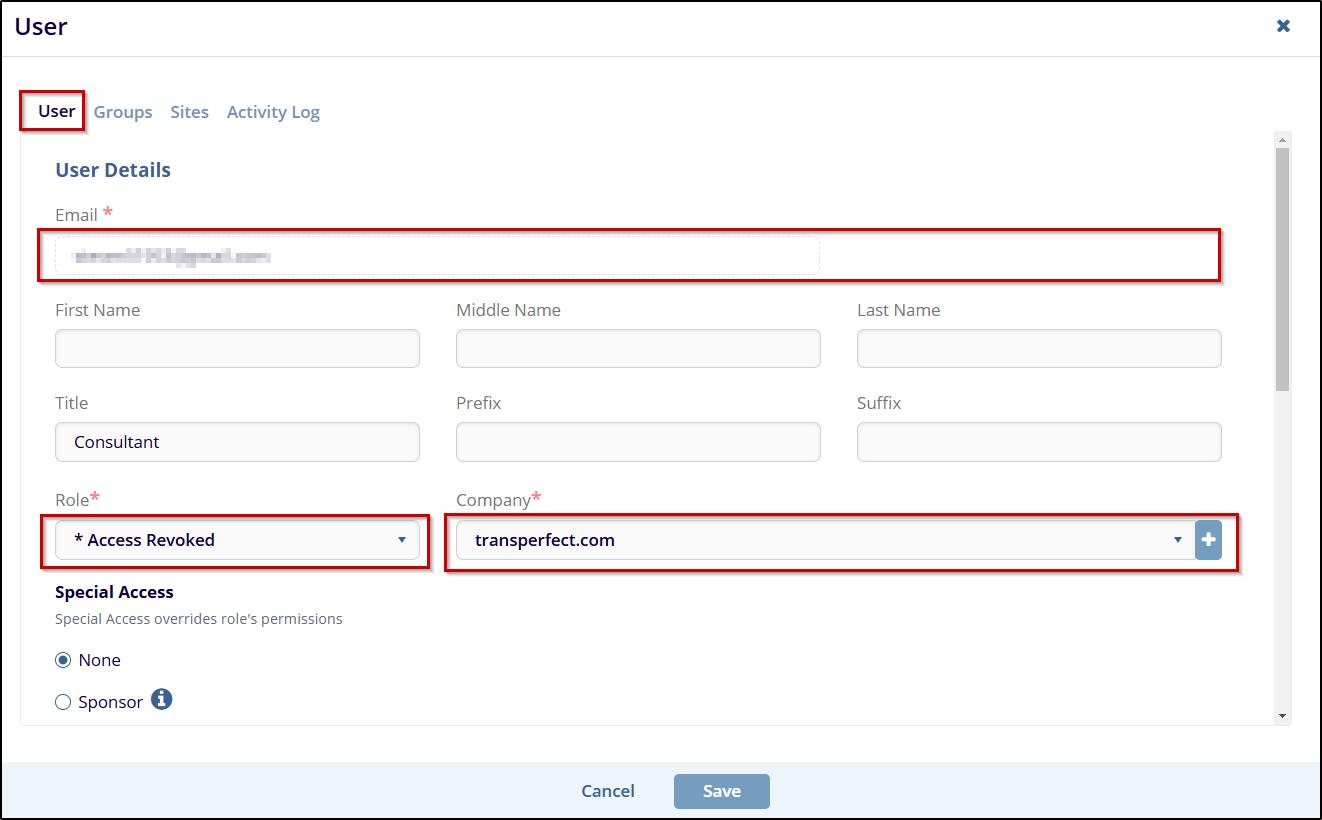
- The User pop-up window will open, allowing you to modify the user's information.
Edit the fields as required.
- Click the Groups tab, the user can manage the groups where the added user belongs to, refer to the steps 8 to 12 as mentioned in the Invite Users section.
- Click the Sites tab, the user can manage the groups where the added user belongs to, refer to the steps 13 to 16 as mentioned in the Invite Users section.
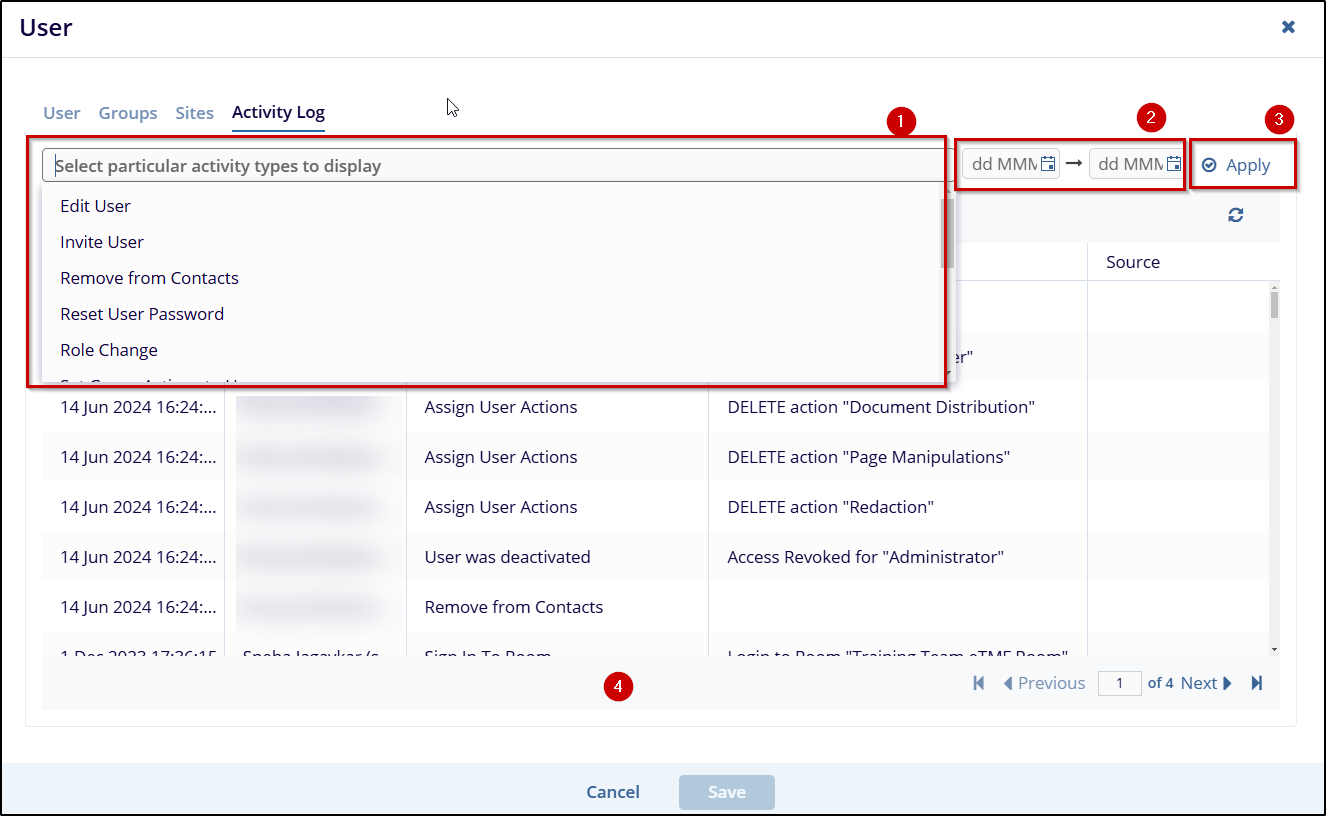
- Click the Activity Logs tab, to filter and view specific user activity,
follow the steps below:
- Click on the select particular activity types to display field a list of activity types is displayed in the dropdown list. Choose the relevant activity type.
- Select the date range by clicking on the date fields.
- Click Apply to display the filtered activities.
- Review the displayed activities, and if you wish to save any changes or selections, click Save.
-
Click Save to apply the changes overall.

