Send Invitation
As an Administrator, the Send Invitation option allows the user to send an email invitation to the selected user, providing access to the study/room based on the assigned role and permissions.
Follow the steps below to send an invitation:
- Select the required user(s) by clicking the checkbox next to the user name.
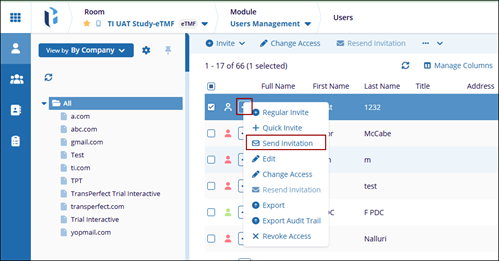
- Click the Actions menu (three dots) to open the available options, select
Send Invitation.
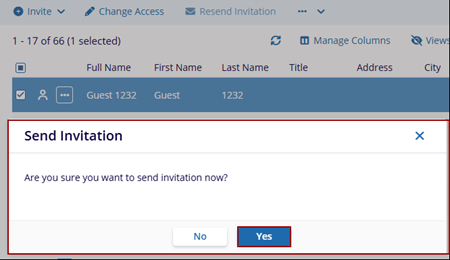
- The Send Invitation pop-up window is displayed to get the confirmation whether
to send the invitation or not.
- The system will send an invitation email to the selected user(s). Once sent, the user will receive the invite link to access the study/room.
Resend Invitation
As an Administrator, you can resend an invitation to a user if the user has been invited but has not visited the room.
Follow the steps below to resend an invitation:
- Select the required user(s) by clicking the checkbox next to the user name to whom you want to resend the invitations.
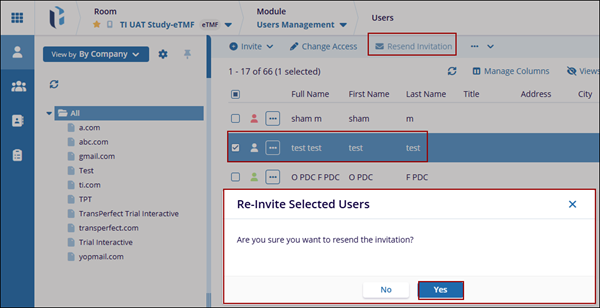
- Click the Resend Invitation icon from the top ribbon bar. A popup window will
appear, asking you to confirm.
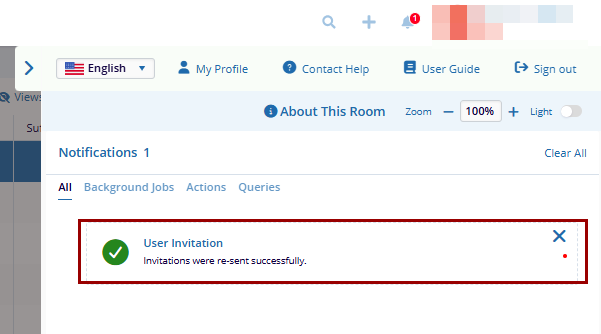
- The invitations will be resent to the selected users, and a confirmation
notification will appear.