
My Profile
Explore Job Aids and Videos for more help:
Job Aids
Videos
In this section, the user can manage the profile using settings which are user-specific. Any changes made in this section impact the user account and not the room.
To Access My Profile:
- Click the Username dropdown located at the top right corner.
- From the pop-up that appears, click My Profile.
- The user will be redirect to the profile settings page.
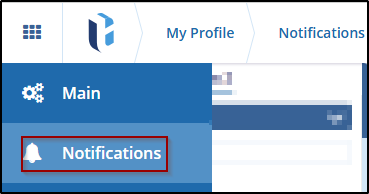
My Profile area is divided into two sections:
- Main (My Profile Settings)
- Notifications
Click on the Main section from the left panel.
In this Section, you will find the following User Profile Dashlet.
- General Information
- Password Recovery - Secret Questions
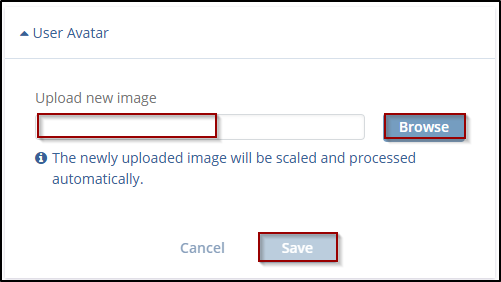
- User Avatar
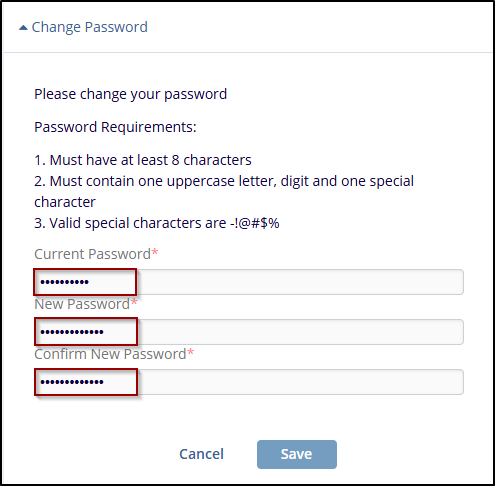
- Change Password
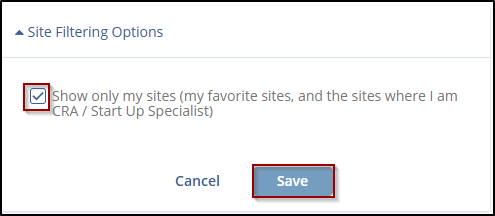
- Site Filtering Options

To set the preferred language and date applicable:
- Click on the Language dropdown.
- Scroll down to locate your preferred language.
- Click on the language to select it.
- The user profile dashlet and field labels will change to the selected language.
- Click on the checkbox to enable custom date input.
- Enter the date format preferred by user. Date format should contain day ("D", "DD"), month ("M", "MM", "MMM", "MMMM"), year ("YY", "YYYY") and separator ("/", "-", ".")
- Once done, Save the changes. By clicking on the Save button.
Users are required to set the answers to secret questions to help recover passwords in case they forget their Password.
To set the secret questions and their answers:
- Click the down arrow in the Question 1 field. Scroll through the list of questions in the popup and select your preferred question.
- Click on the question of your choice to select it.
- Enter your answer in the Answer field.
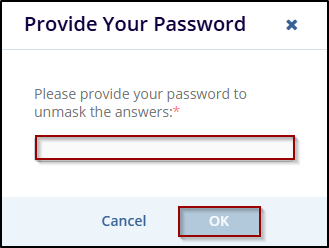
- To confirm your password click on the Unmask answer icon.
- A pop-up will appear Please provide your password to unmask the answer. Provide your answer and click on the lOk button.
- Click the Save button.

 Linkedin
 X
X

