
Document Queries - Top Menu Ribbon
This menu is located at the top of the Document Queries and allows access to various functionalities such as:
Add Assignees
To assignees to the query, follow the steps below:
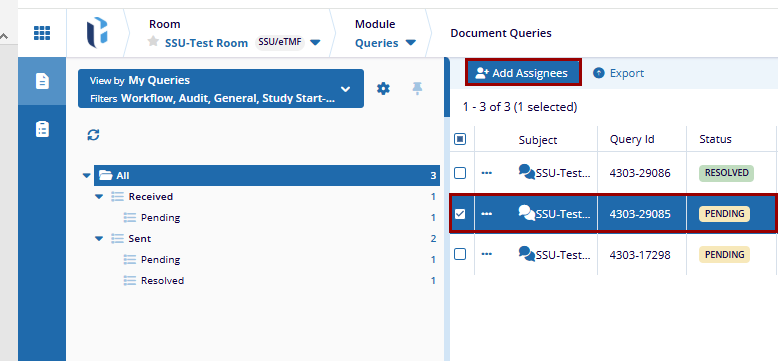
- Select a query from the Document Queries tab.
- Click the +Add Assignees button from the top menu.
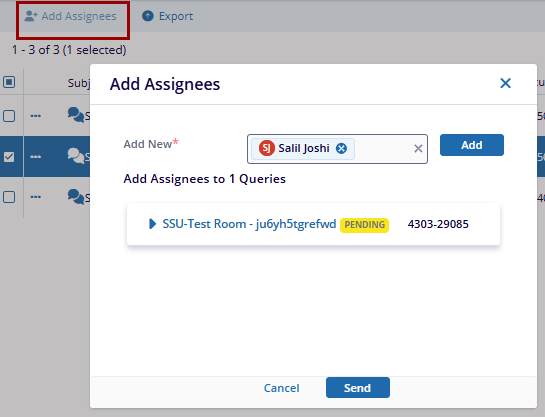
- On the Add Assignees window, click the Add button next to the Add New text
box.
- On the Choose Email Recipients window, select the Groups, Users or Contacts tab.
- Select the required groups, users or contacts from their respective tabs and drag & drop them to the Selected member’s section.
- Click Save.
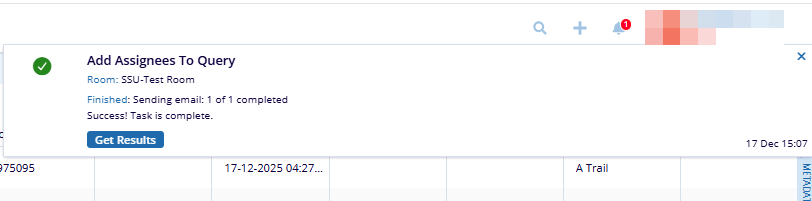
- Once selected, click the Send button to add the users as assignees.
Export
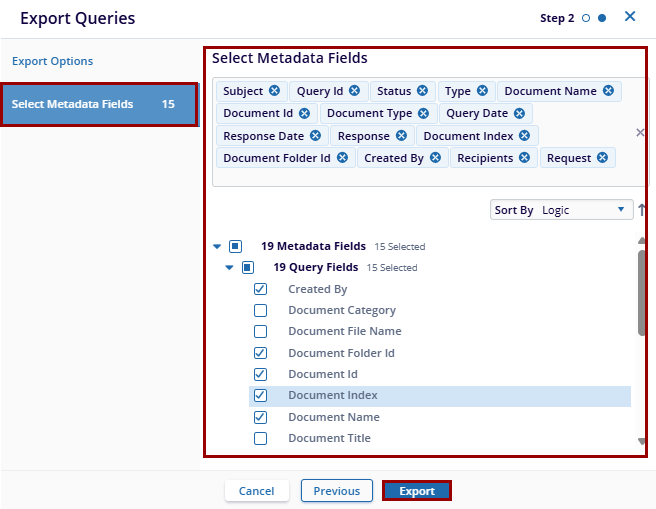
To export queries, follow the steps below:
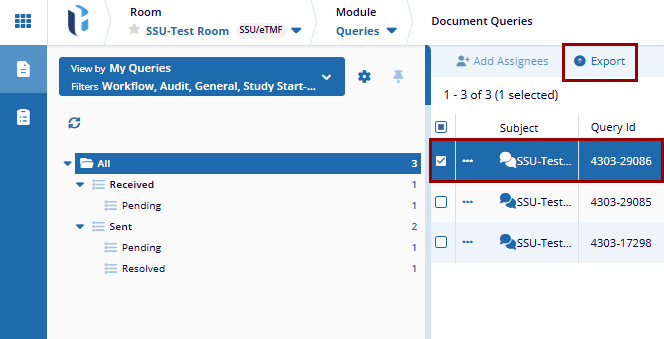
- Select the queries from the grid.
- Click the Export button located in the top menu bar.
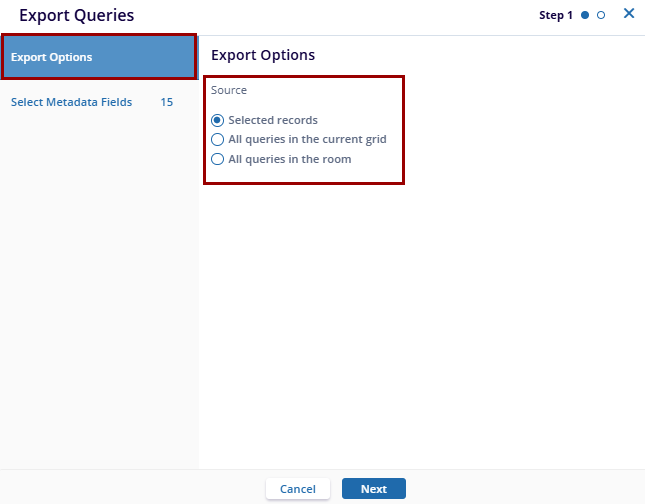
- On the Export Queries window, select a source from the following as export options
and click Next
- Selected records: This option gets activated only when the user has selected specific queries within the grid and exports only those queries.
- All queries in the current grid: Exports all the queries that are visible in the grid view.
- All queries in the room: Exports all queries in the current room,
whether queries are visible in the grid or not.
- On the Select Metadata Fields step, select the required metadata fields and the
click Export button.
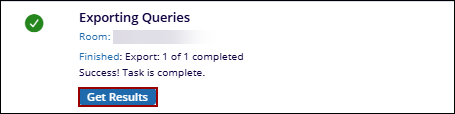
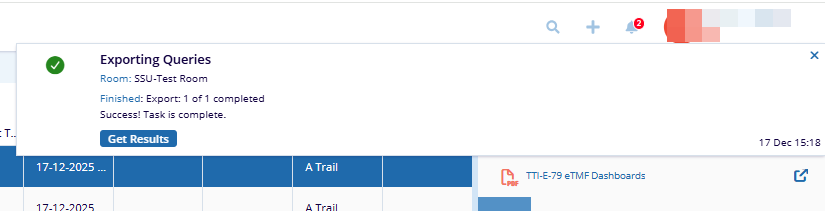
- On the Exporting Queries success pop-up, click the Get Results button to download
the export file in Excel format.
Queries Cart
The Queries Cart enables users to select and group multiple queries, allowing assignees to be added to all selected queries in bulk.
To add queries to the Queries Cart, follow the steps below:
- Select multiple queries from the grid and drag & drop them to the Queries
cart.
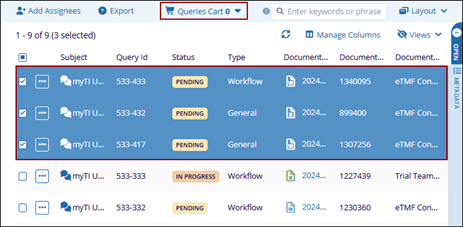
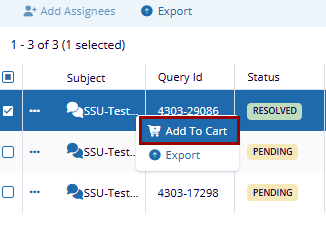
- Alternatively, to add queries to the cart, select the required queries and right-click.
- From the context menu, choose Add to Cart.
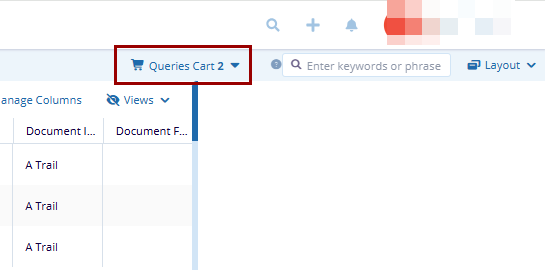
- Click on Queries Cart button from the top menu bar that displays queries added to the cart.
- Click the Actions dropdown and select +Add Assignees.
- Repeat steps detailed in the Add Assignees section to add users as assignees to the queries.
Search Queries
To search for queries, complete the following steps:
- Navigate to the search bar located at the top right corner of the page.
- Enter the desired search term in the search field and press Enter.
Layout
The layout menu, above the metadata pane, allows the user to choose from several potential page layouts.
- Browse
- Browse with Metadata
- Review

 Linkedin
 X
X

