
View Queries By
Queries enable users to filter and organize the query according to specific requirements. The interface displays a customizable option, simplifying the process of tracking and managing queries effectively. View Queries by
The View Queries By allows users to filter queries based on requirements such as sender, recipient, status, site, or document type. This functionality improves query management by allowing users to focus on relevant information.
The View Queries by options are:
- My Queries: This is a default view where users can view their queries across various filters.
- By Sender: View queries filtered by the sender of the query.
- By Recipient: View queries based on the recipient of the query.
- By Status: Sort queries by their status, such as Pending, In Progress, or Resolved.
- By Site: Filter queries based on the site associated with the query.
- By Country: Filter queries based on the country related to the query.
- By Document Type: Organize queries based on the type of document associated with the
query.
Refer to the below screenshot:
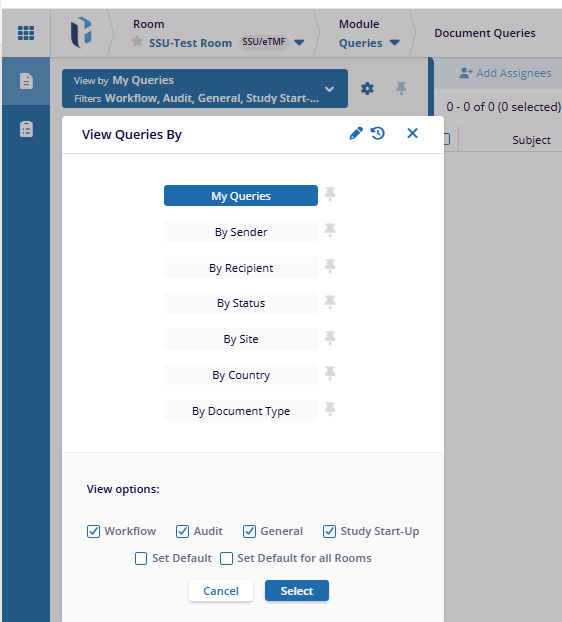
Note: In View Queries By options can be modified using the Pencil
icon. Clicking the pencil icon allows users to edit the available filter options,
Refresh the option using the refresh icon, and enable them to pin or unpin specific
criteria according to user preferences.

 Linkedin
 X
X

