
Approve Documents
To approve a document, follow the steps below:
- As a reviewer in the first stage of workflow, claim a document by following steps detailed in the Claim a Document section.
- Open the documents metadata panel.
- Within the metadata tab, navigate to the workflow step section.
- Click the Status dropdown and select the Approved status.
- Enter the comments.
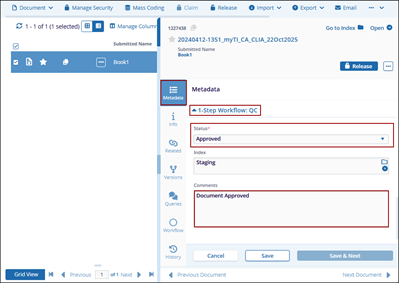
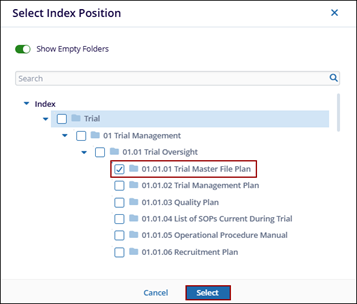
- To assign an index position, click the folder icon in the Index field.
- Choose a different index position and click Select.
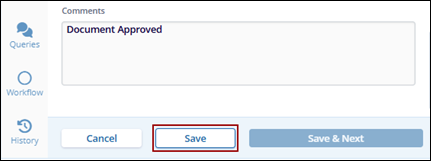
- Click the Save button.
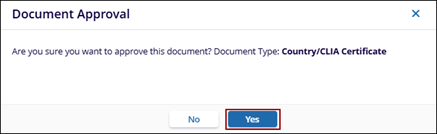
- On the Document Approval pop-up, click Yes.
- Click the refresh icon next to the document icon.
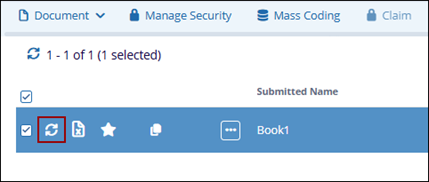
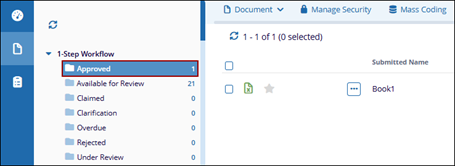
- The approved document is displayed in the Approved folder.
 Note:
Note:- Comments add by the reviewer are workflow specific and are separate from the ‘Comments’ metadata field.
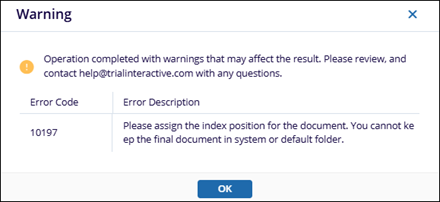
- A unique index position must be assigned to the document at the time of approval, as final (approved) documents cannot remain in the system or default folder.
- If a system-defined index position (e.g., Staging) is selected, the
system will display a warning pop-up with the corresponding
message.
- If the workflow has multiple stages configured, the document becomes available for review to the users assigned to the subsequent stage.

