Reject Documents
Explore Job Aids for more help:
Job Aids
Videos
To reject documents, follow the steps below:
- As a reviewer in the first stage of workflow, claim a document by following steps detailed in the Claim a Document section.
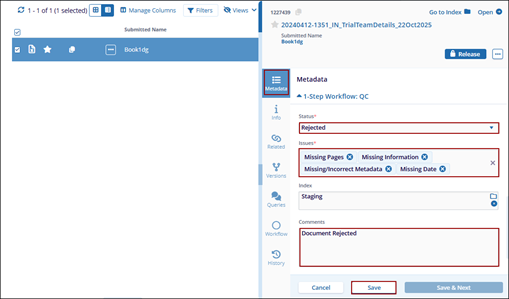
- Open the documents metadata panel.
- Within the metadata tab, navigate to the workflow step section.
- Click the Status dropdown and select the Rejected status.
- Click the Issues dropdown and select the one or multiple issues.
- Enter the comments.
- Click Save.
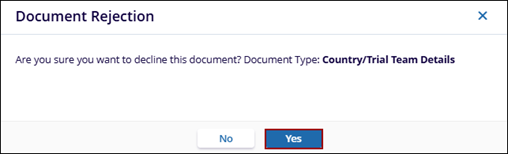
- On the Document Rejection pop-up, click Yes.
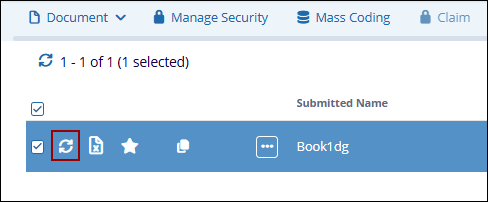
- Click the refresh icon next to the document icon.
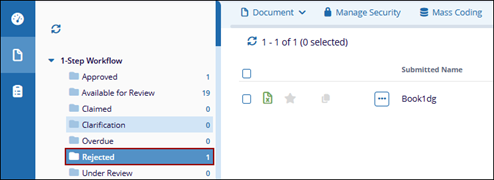
- Once rejected, the document is displayed in the Rejected folder.