
Three Dot Drop Down
Explore Videos for more help:
Videos
Move to Study Start-Up
This option is only available in rooms with Study Start-Up enabled.
To move documents to Study Start-Up, follow the steps below:
- Check the documents checkbox to select the document.
- Click on the three-dot menu and select the Move to Study Start Up option.

- Click on the Yes button on the confirmation popup.

Print Function
The Print function does not print the selected documents but merges them into a single PDF file which can then be downloaded or printed by the user.
To merge multiple documents into a single PDF file, follow the steps below:
- Select multiple documents by clicking on their checkboxes.

- Click on the three-dot menu and select the Print option.

- On the Print Documents popup select either Selected Records or All Records in Set radio button and click on the Print button.
- On the Print eTMF Documents success message popup, click on the Get Results button
and a new tab will open displaying a single PDF file with pages merged from both the documents.

Compare Documents
To compare documents, follow the steps below:
- Selecting two documents
- Click on the three-dot menu and select the Compare option.

- The selected documents will appear side-by-side in a pop-out window along with any associated metadata.
- Expand the metadata section to view and edit the document metadata.

Search Documents
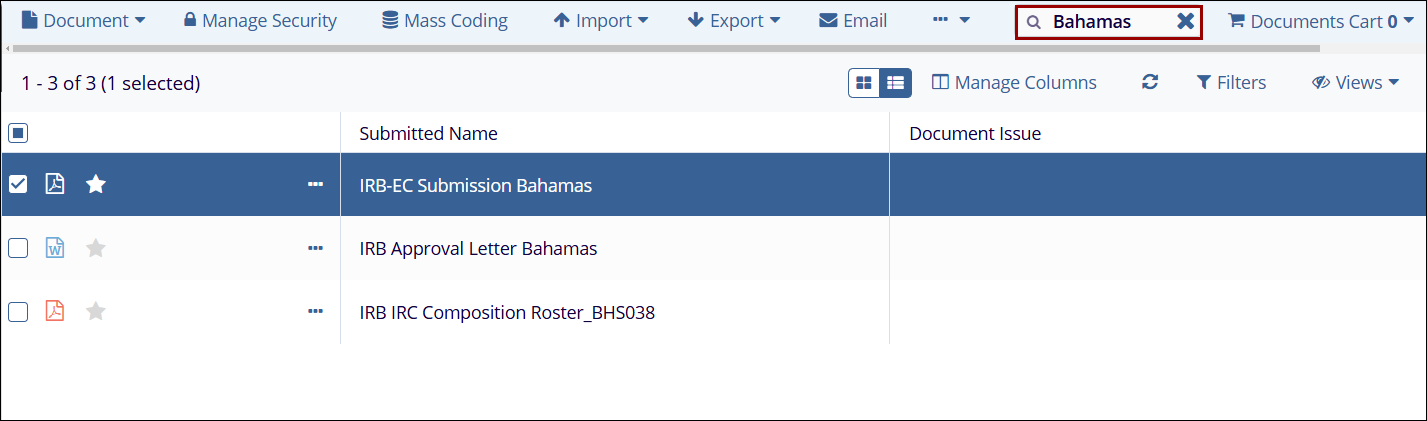
Above the documents grid, next to the documents cart, is a search bar. This is a local search and will search the currently selected index folder for relevant documents.

 Linkedin
 X
X

