
Uploading Videos
The Import function enables users to add documents to a Trial Interactive (TI) room. Where permitted by user role and room configuration, this functionality also supports uploading video files. Videos uploaded to a TI room are treated as documents and can be indexed, secured, and managed in the same manner as other file types.
Video files can be uploaded to the TI room.
Note: If users upload large or high-resolution video files to TI
rooms, the videos may not play as expected within the room. To avoid playback issues,
one of the following options is recommended:
- The video files should be uploaded in a lower resolution or otherwise reduced in size.
- The video file should be downloaded to the user’s local machine for playing.
To Import Video follow the below steps:
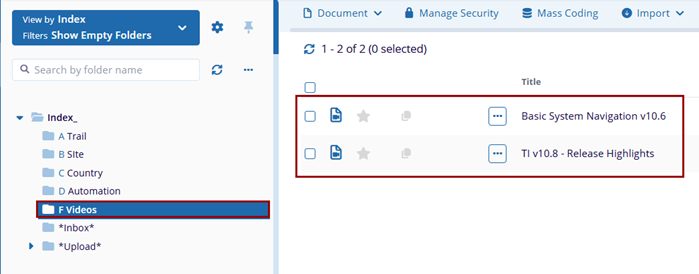
- Once enter to the room, select the folder where the video should be uploaded from the left navigation panel (for example, Videos)
- From the top menu bar, click Import and select Documents from the
dropdown menu.
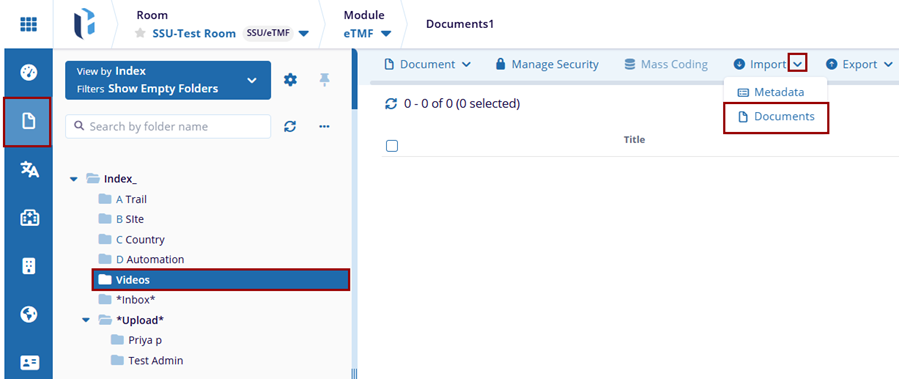
- The Import Documents window will apear.
- Add video files by clicking Browse File to select files from your local
system or by dragging and dropping files into the Drop Files and Folders Here area.
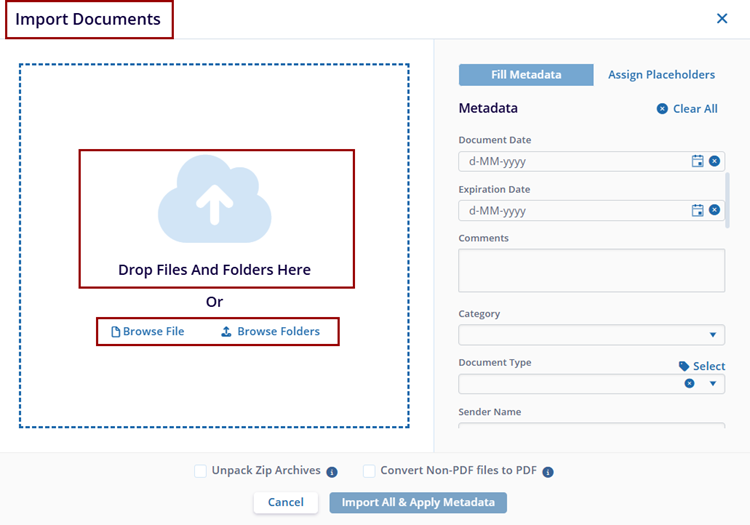
Note: Multiple video files can be uploaded in a single import action. Ensure the files comply with the recommended video guidelines. - Verify that the selected video files appear in the Documents list. In the
Metadata panel, enter the required information as per the requirement.
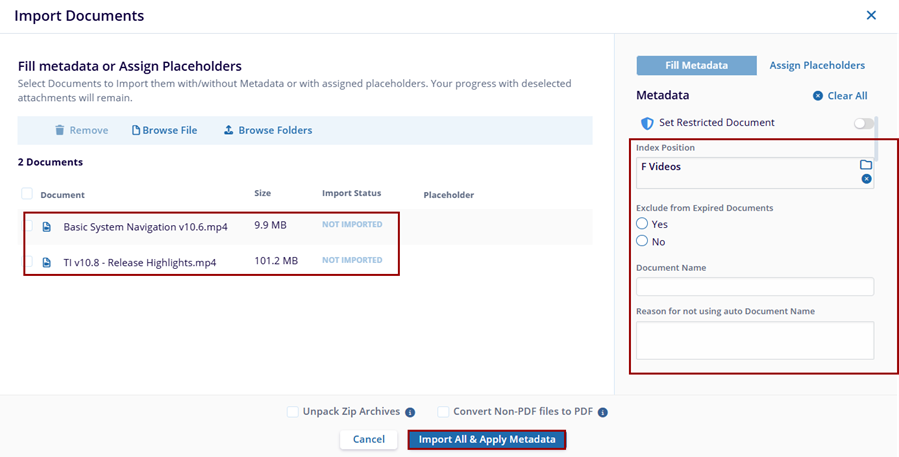
- Click Import All & Apply Metadata to begin the upload process. The system
displays the upload status for each video as In Progress or
Finalizing.
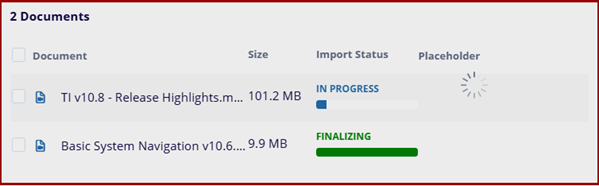
- Once the upload is complete, a confirmation message displays stating Documents were imported successfully.
- The videos are now available in the selected folder.

 Linkedin
 X
X

