
Document Module
Explore Job Aids for more help:
Job Aids
Videos
The Trial Interactive eTMF Documents is the central repository for all the clinical trial documents in their original digital format with Digital Signatures wherever applicable, records, or documents converted from one format to another like paper documents, images converted to PDFs, videos and recordings pertaining to trials.
Here, users can configure and store essential documents about clinical trials, view and edit document attachments, manage security privileges, import and export documents and their metadata, and mail them to other users in addition to many other functions.
To comply with eTMF Completeness, users can track the progress right from document collection to the finalization of a document. This application also provides with the facility to post Questions and Answers along with the generation of FAQs for further insights.
The documents are then subjected to Quality Control, and Quality Review checks as specified by the FDA.
To access the documents modal, follow the steps below:
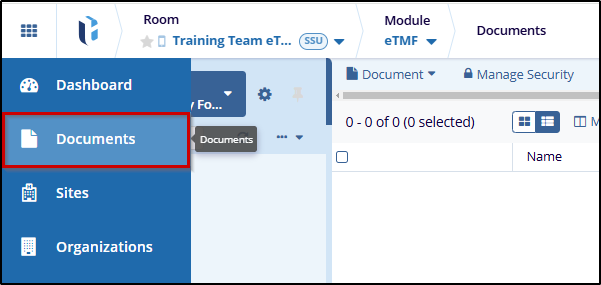
- Select the eTMF module from the Module dropdown.
- Click on the Documents modal from the left-hand navigation menu.
Room Index
- Documents emailed to a room's inbox are stored in each user's inbox unless the room is set up differently.
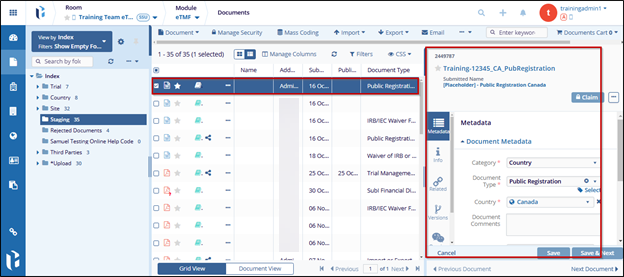
- Documents uploaded directly to the room without metadata appear in each user's Upload folder, while those uploaded with metadata are placed in the Staging folder.
- Depending on room configuration, documents can also be uploaded directly to other index folders.
- Selecting the folders displays the documents within them in the documents grid at the center of the screen.
- Selecting a document from the grid loads its metadata in the Metadata Pane on
the right side of the screen. It may also include Workflow, Queries, Versions,
History, and eSignature tabs, depending on the document's context.

 Linkedin
 X
X

