
Other Tabs
Submitted Documents
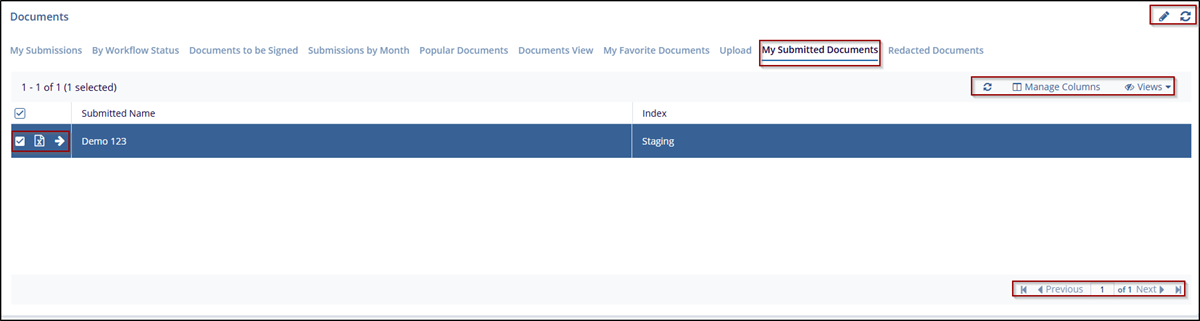
The My Submitted Documents dashboard represents a user interface component that lists documents that have been uploaded or submitted by the user. This view displays a list of submitted documents, showing details such as the Submitted Name and Index.
Steps to view my submitted documents:
- In the Documents Dashboard, select the My Submitted Documents tab.
- Review the list of documents displayed with their details (e.g., Submitted Name, Index, Last Updated By).
- Select the required and appropriate checkboxes from the Submitted name option to select the document, next to the checkboxes, the user can click on the blue arrow (Go to the document), which will navigate to the document index.
- Use the pencil icon to edit the Dashboard name at the top right corner.
- Click Manage Columns to adjust the visible information in the table.
- Use the navigation controls Previous and Next to switch between pages of documents.
- Click the refresh icon to update the list with any recent changes.
Redacted Documents
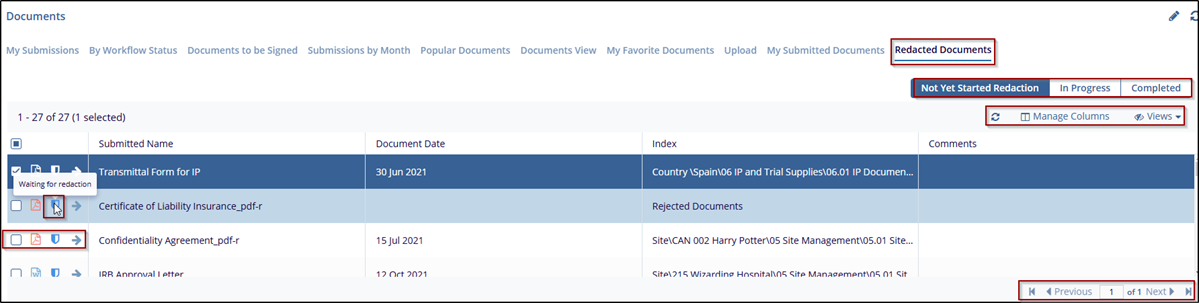
The Redacted Documents dashboard shows a set of documents that have undergone or are undergoing redaction, a process where sensitive or confidential information is removed from documents before they are shared or published.
Steps to Managing Redacted Document:
- In the Documents Dashboard, select the Redacted Document tab, where documents undergoing redaction are listed.
- The user can use the status filters at the top right to sort documents by redaction stage:
- Not Yet Started Redaction for documents pending redaction.
- In Progress for documents currently being redacted.
- Completed for documents where redaction is finalized.
- Select the required and appropriate checkboxes from the Submitted name option to select the document, next to the checkboxes, the user can click on the blue arrow (Go to the document), which will navigate to the document index.
- The blue icon shows the document is waiting for redaction.
- Use the pencil icon to edit the Dashboard name at the top right corner.
- Click Manage Columns to adjust the visible information in the table.
- Use the navigation controls Previous and Next to switch between pages of documents.
- Click the refresh icon to update the list with any recent changes.
Workflow
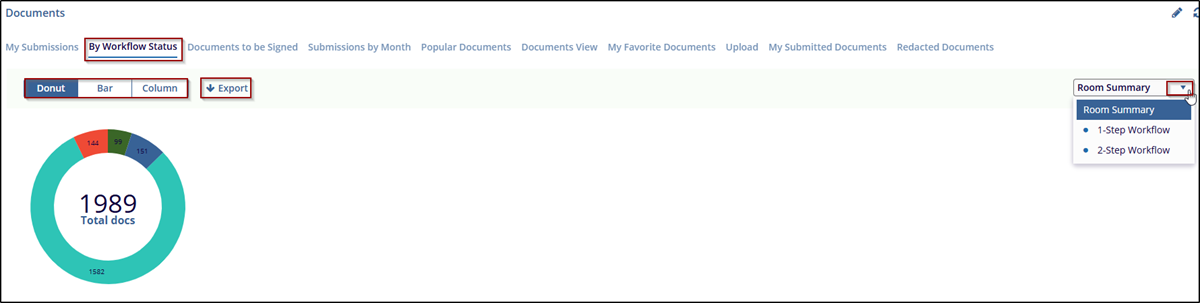
The By Workflow Status refers to the process tasks that documents go through in the system. Workflows are typically defined by stages such as submission, review, approval, redaction, or other processes. The By Workflow Status provides a breakdown of documents within different workflow stages.
Steps to managing workflow Status:
- Click on the By Workflow Status to view the workflow chart through the Donut, Bar, and Column view by selecting it.
- On the right side of the document dashboard, there is a drop-down menu. By default,
the Room Summary option is selected, where the user can view the document processing
status, and complete Room Summary, with these options
- 1-Step workflow
- DM workflow
- QC1 group
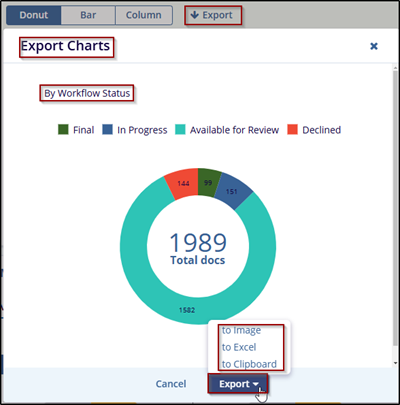
- The user can export this data by clicking the Export button. The Export chart window
will be a popup and the user can export the data in – Image, Excel, or Clipboard format.

 Linkedin
 X
X

