Document Activities Menu
Explore Job Aids for more help:
Job Aids
The Document Activities Menu provides access to various actions based on the user’s access rights. To open this menu, select a document or placeholder from the Grid and either right-click or click on the three-dot menu.
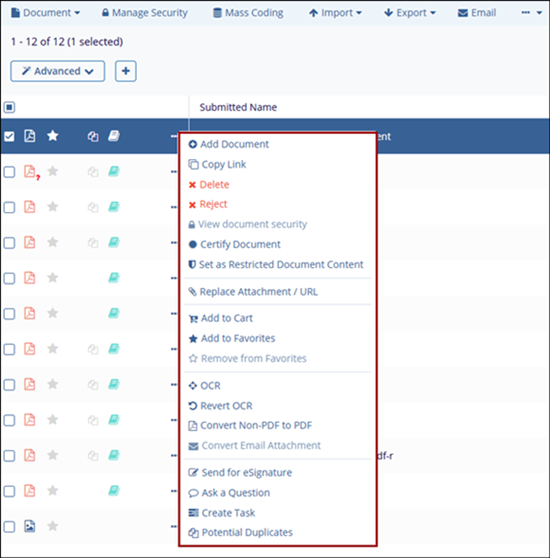
Add Document
Users with sufficient access (editors and above) can open the Document Activities Menu and select the Add Document option. In locations within Trial Interactive where this is an option, the system will open an import interface that will apply the coding relevant to the placeholder so that the document can be added to the system pre-coded.
To add a document, follow the steps below:
Copy Link
If referencing a specific document to another room user for review, the Document ID Number can be provided or the Document Activities menu can be opened to select Copy Link, which will copy a direct URL link to the clipboard. Anyone using the link must have sufficient access to the study room in order to view the document.
To copy link, follow the steps below:
Delete Documents
Administrator-level users can select Delete from the Document Activities menu for any document in the room, except those currently claimed for review in an Audit Response or the QC Workflow. Editor and Manager-level users can delete documents only if they uploaded the document and it has not been claimed by the QC workflow. Once a document is marked as final, Editor and Manager-level users cannot delete it unless additional permissions are granted.
To delete documents, follow the steps below:
Reject Documents
A new setting is added to support a Rejected folder within the eTMF for Room Administrators, and a new Document Rejection function is now available to Admins, Document Managers, and Room Managers. Any documents in Upload, Inbox, Staging, and Rejected Folders are not considered to be Final. A Reason for Rejection dropdown is now available for workflow documents and documents in the rejected folder/status are now excluded from eTMF health calculations.
To reject a document, follow the steps below:


