
e-Signature
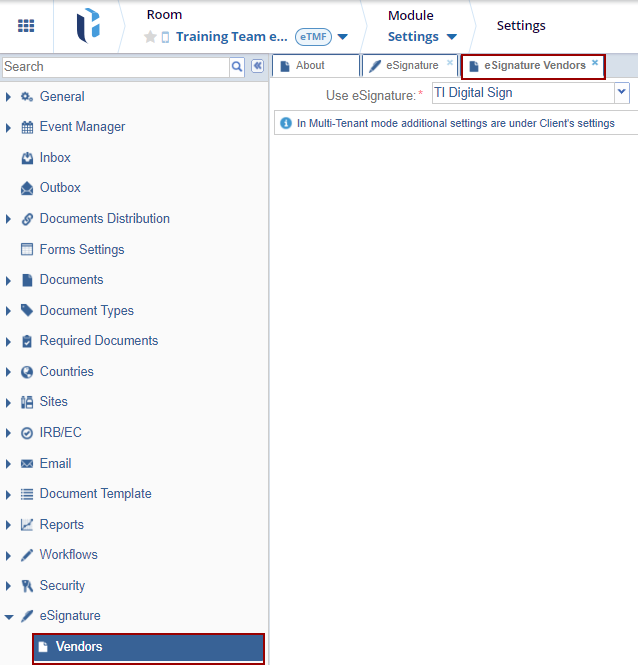
The system shall have an Out-of-the-Box 21 CFR Part 11 compliant Electronic Signature, which appends a signature manifestation page to the document. Within the eSignature settings, administrators can define the eSignature vendor, reasons and the purpose of eSignature.
To access the eSignature settings page, navigate to the Settings module within the room and select eSignature from the left-hand navigation pane.
Vendors
The e-signature vendor available to the user is determined by the vendor selected by the organization.
To add an eSignature vendor, follow the steps below:
- Expand the eSignature dropdown from the left-hand navigation pane and select Vendors.
- Click the Use eSignature dropdown to select the vendor.
- Click Save.
Reasons
When e-signing a document, e-signers must specify the reasons for approving or declining it. Administrators can configure the available reasons for e-signature from this section.
Add Reason
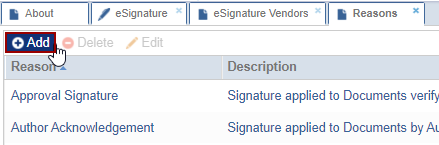
To create a new reason, follow the steps below:
- Expand the eSignature settings dropdown and select Reasons
- Click +Add on the Reasons page.
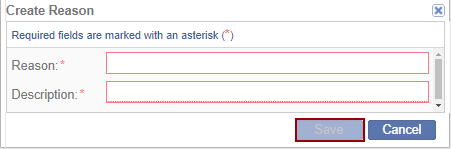
- On the Create Reason pop-up, mandatorily specify the reason and description.
- Click Save.
Edit Reason
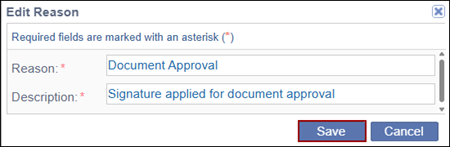
- Select a reason and click Edit from the top menu bar.
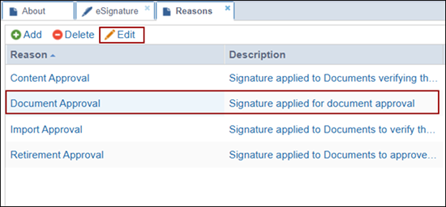
- On the Edit Reason pop-up window, make the required changes and click
Save.
Delete Reason
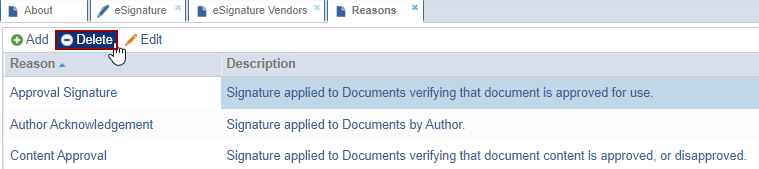
- Select a reason and click Delete from the top menu bar.
-
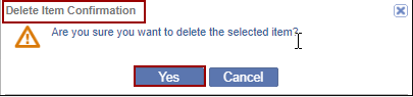
A Delete Item Confirmation pop-up, click Yes.
Purpose of the Signature
The purpose of the e-signature is an additional text to display on the top of the send-to-e-signature form.
To configure the eSignature purpose, follow the steps below:
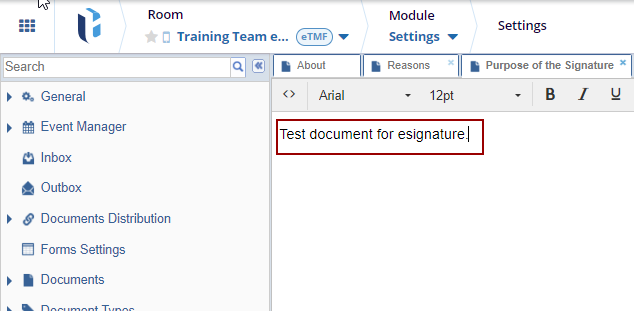
- Expand the eSignature settings dropdown and select Purpose of the Signature option.
- Enter some text in the panel.
- Click Save.

 Linkedin
 X
X

