
Event Manager
The Event Manager settings enable users to add, edit, and configure event-related options that support planning, tracking, and managing key events throughout a clinical trial’s lifecycle.
The Event Manager settings section provides an overview of these options and guides users on effectively configuring and managing event-related settings, including:
- Event Types
- Common Event Configuration
Event Types
The ‘Event Types’ functions as an additional location for managing event types at Study, Site, and Country levels. The Event Types settings page displays all the Event Types depending on the criterion selected.
Add an Event Type
To add an event type, follow these steps:
- On the ‘Event Types’ page, click the +Add button.
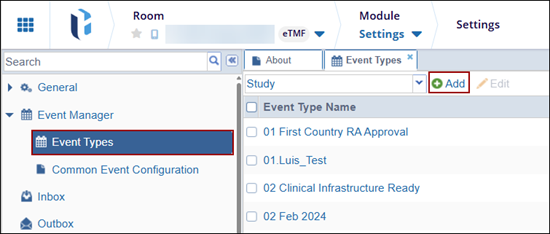
- On the ‘Event Type Profile’ pop-up, enter the following details and click Ok.
- Event Type Name
- Category
- Due Date Period
- Description
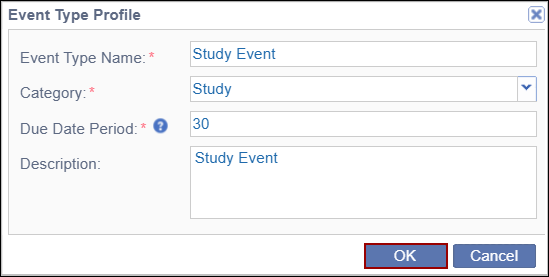
- The newly created event type will appear on the main page under the selected category.
- The newly created event type will appear on the main page under the selected category.
Edit an Event Type
To edit an event type, follow the steps below:
-
Select an event type and click the Edit button.
- On the Event Type Profile pop-up, enter the number less than 30 to set the due date for
the selected event and click OK.
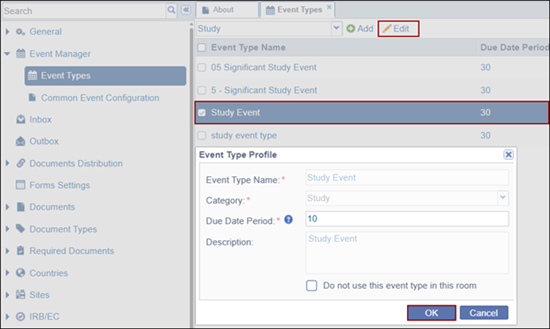
- The updated due date period will appear on the main page under the Due Date Period column.
Change Log in Event Types
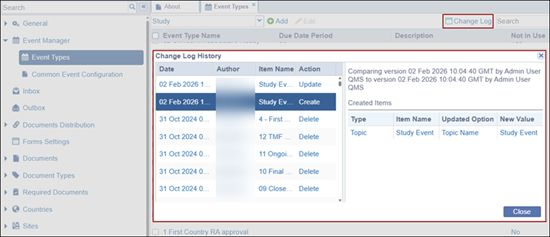
- The left section lists event types along with their creation and update statuses.
- The right section displays detailed information about the selected event type, including the date and timestamp of each update.
The log includes columns for Date, Author, Item Name, Action, and a Close button.
Common Event Configuration
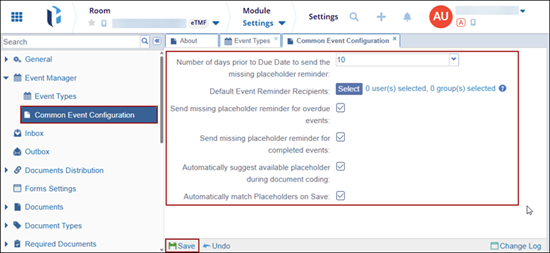
The Common Event Configuration settings allow room administrators to configure the frequency of reminder notifications for placeholders generated by events, overdue events, and completed events. These notifications will be sent to members of the Responsible Department linked to the document types of the missing documents.
- Number of days prior to Due Date to send the missing placeholder reminder: Specify the days by clicking on the dropdown menu and selecting the necessary options.
- Default Event Reminder Recipients: Add the default recipients by clicking on ‘Select’ and selecting the required groups and/or users. If Responsible Departments are not configured in the room, the ‘Default Event Reminder Recipients’ can be used to define users who will receive notifications for all missing event-related documents, regardless of department association.
- Send missing placeholder reminder for overdue events: Select the checkbox to trigger reminders for overdue events.
- Send missing placeholder reminder for completed events: Select the checkbox to trigger reminders for completed events.
- Automatically suggest available placeholder during document coding: Select the checkbox to suggest available placeholder during document coding.
- Automatically match Placeholders on Save: The options is activated if the above
checkbox is selected. Selecting this option automatically matches the placeholders upon
save.
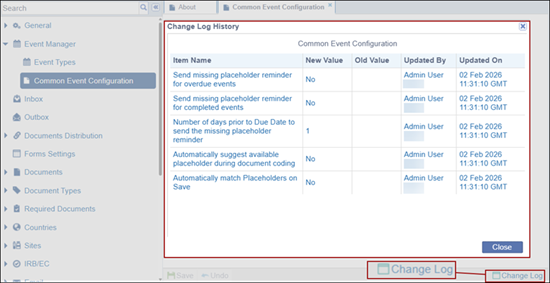
- Click the Change Log button, located at the bottom right of the screen, that
displays a record of Common Event Configuration. It includes columns for Item Name, New
Value, Old Value, Updated By, and Updated On (with the timestamp).

 Linkedin
 X
X

