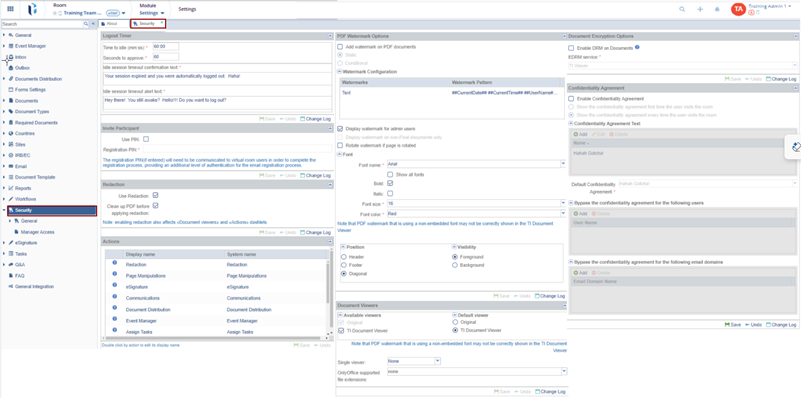
Security Management
Most of the room's Security Settings are established at the start of the study and remain unchanged throughout its duration. Any changes made to these settings should be communicated to the Project Manager to ensure they are included in the Change Log.

The General Security Settings can perform the following functions:
- Logout Timer
- Invite Participant
- Redaction
- Actions
- PDF Watermark Options
- Document Viewers
- Document Encryption Options
- Confidentiality Agreement
Room administrators can set a Logout Timer from the room settings.
- Adjust the time a user can remain logged in without being active in the study room.
- You can also adjust the Seconds to approve field. This is the amount of time a user has to respond to the Idle session timeout confirmation message.
- Enter the message that the user sees on the screen when the user is automatically logged out due to an idle session in the Idle session timeout alert text.
- Click Save after any changes or Undo to revert back any changes made.

The Change Log option, located at the bottom right of the screen, displays a record of the Logout Timer. It includes columns for Item Name, New Value, Old Value, Updated By, and Updated On (with the timestamp) and Close button.
Ensure to click Save to apply and retain any changes.
As an Administrator, the user can add a layer of security to the user registration process.
To use this extra layer of security:
- Click the Use PIN checkbox.
- Enter a Registration PIN.

The Change Log option, located at the bottom right of the screen, displays a record of Invite Participant. It includes columns for Item Name, New Value, Old Value, Updated By, and Updated On (with the timestamp) and Close button.
Ensure to click Save to apply and retain any changes.
Redaction or sanitization involves removing or protecting sensitive information from a document to ensure it can be safely distributed to a wider audience without compromising confidentiality or privacy.

Administrators can choose to enable or disable the Redaction option in the room by checking the box Use Redaction. Refer to the screenshot below:

The Clean up PDF Before Applying Redaction action prepares the document by removing any unnecessary or hidden content that may not be visible but could still contain sensitive information.
This ensures that only the relevant text and elements are present before applying redactions, preventing accidental exposure of sensitive data. It streamlines the redaction process and helps maintain document integrity.

The Change Log option, located at the bottom right of the screen, displays a record of Redaction. It includes columns for Item Name, New Value, Old Value, Updated By, and Updated On (with the timestamp) and Close button.
Ensure to click Save to apply and retain any changes.