
Amendments
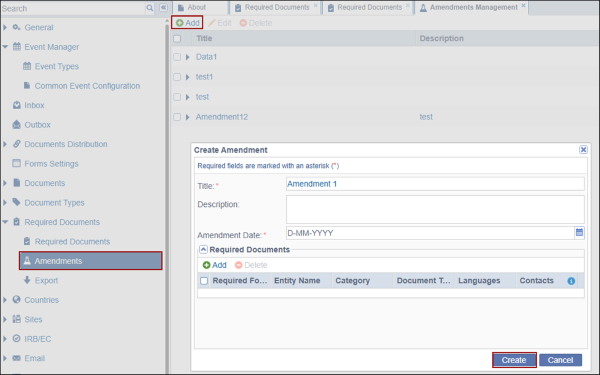
Add Amendments
- To add amendments, follow the steps below.
- Click +Add.
- Enter the required details in the Create Amendment form.
- Click Create.
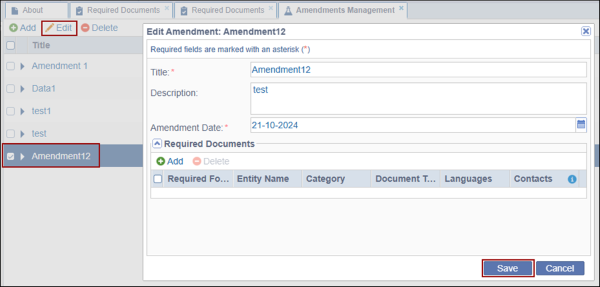
Edit Amendments
- Select an existing amendment.
- Make the required modifications.
- Click Save.
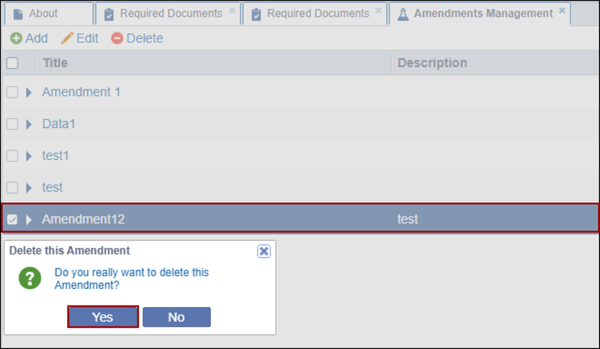
Delete Amendment
- Select an existing amendment.
- Click ‘Delete’.
- Click ‘Yes’ on the confirmation pop-up.
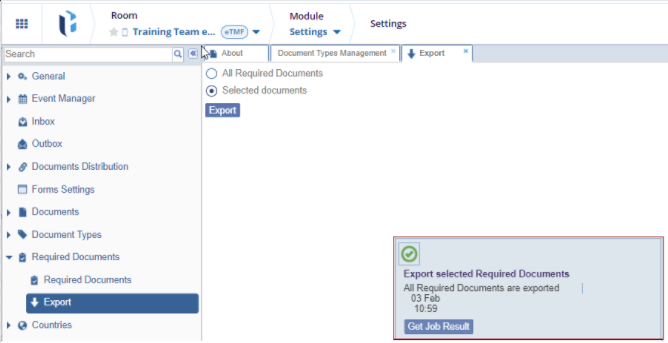
In this menu, Administrator users can export either All Required Documents or Selected documents. Refer to the screenshot below:
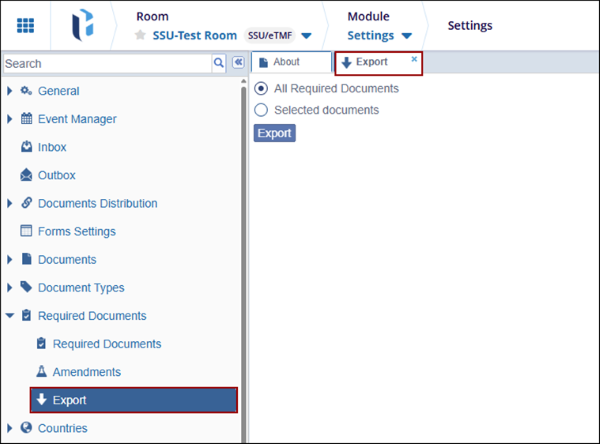
Required Documents can be exported in two ways:
- Select the All Required Documents’ option to export documents from all document source categories.
- Select the ‘Selected documents’ option to indicate which documents should be exported.
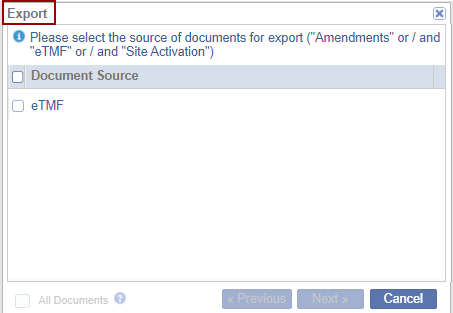
- The Export window opens for you to choose from Amendments, Site Activation Requirements, or eTMF documents. Refer to the screenshot below:
- Select the required Document Source/s and click Next.
- A new Export window opens for you to select required Entity Types and
Categories. Refer to the screenshot below:
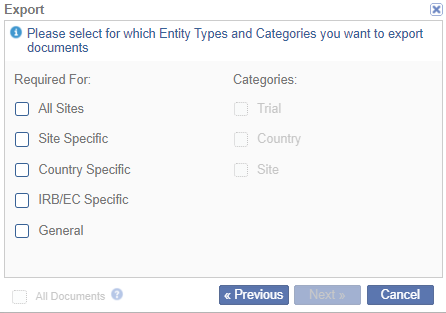
- Click Next.
- The final Export window will open for you to review the chosen criteria.
- Click Previous to make changes in the selections or click Next to continue.
- Press the Export button to export the list of documents selected.
- A notification will display indicating that the job was completed successfully.
- Click Get Job Result on the right bottom of the screen.
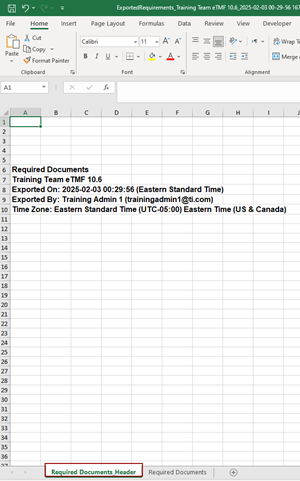
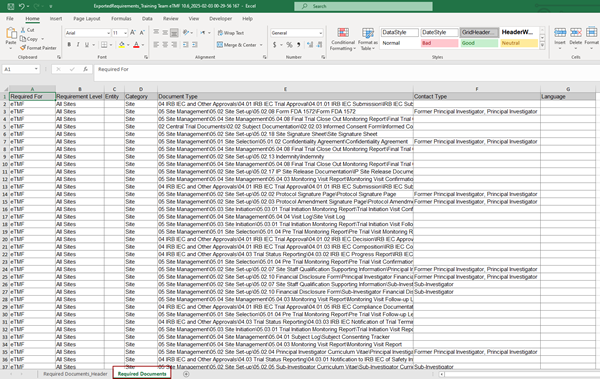
- An excel file is generated with a list of required documents and you can save the
file for your records.

 Linkedin
 X
X

