
General Settings
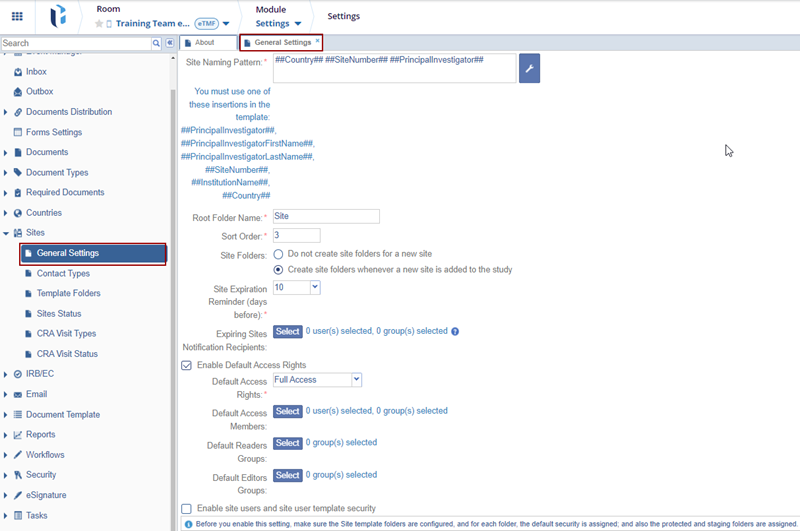
Within the General Settings section, administrators can define the site naming pattern, root folder configurations, recipients who shall notification once the site is about to expire, and grant default access permissions to users and groups.
To configure the general settings for sites, follow the steps below:
- On the General Settings page, click the wrench icon located next to the Site
Naming Pattern field.
- On the Auto Name Rules window, modify the site naming patter in the Rule Editor box.
- Under the Available Templates section, select a template from either the Hardcoded or Functions tabs.
- View the Insertion Description that displays the Insertion and Previewed as information.
- Click the Refresh Preview icon to view the naming convention.
- Click OK.

- Within the Root Folder Name field, specify the name which will be the main folder in the room’s index.
- Enter a number in the Sort Order field.
- For Site Folders select any one of the options as follows:
- Do not create site folders for a new site
- Create site folders whenever a new site is added to the study
- In the Site Expiration Reminder (days before) field, select the desired
number of days from the dropdown menu.

- Click Select next to the Expiring Sites Notification Recipients
field.

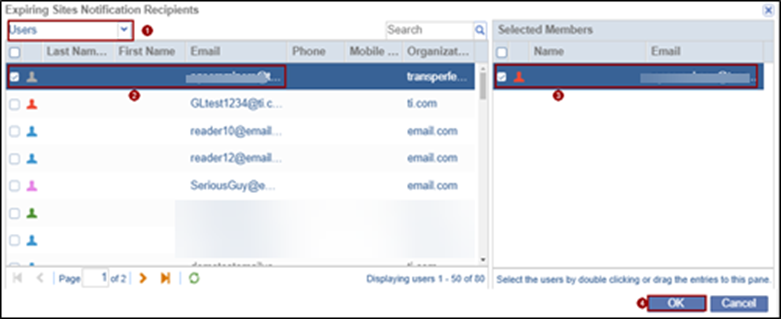
- On the Expiring Site Notifications Requests window, click the top most dropdown and select Users or Groups.
- Select the users and drag & drop them to the Selected Members section
- Click OK.

- Check the Enable Default Access Rights checkbox.
- Click the Default Access Rights dropdown and select any one of the
options
- Full Access
- View Only
- No Watermark

- To add default access members, perform the following:
- Click Select next to ‘Default Access Members’ field.
- On the Default Access Members window, click the top most dropdown and select Users or Groups
- Select the users and drag & drop them to the Selected Members section
- Click OK.

- To add Default Readers Groups, perform the following:
- Click Select next to Default Readers Groups field.
- On the Default Readers Groups window, select the groups and drag & drop them to the Selected Members section.
- Click OK.

- To add Default Editors Groups, perform the following:
- Click Select next to Default Editors Groups field.
- On the Default Readers Groups window, select the groups and drag & drop them to the Selected Members section.
- Click OK.

- Check the Enable site users and site user template security checkbox.
- Click Save.

 Linkedin
 X
X

