
Documents Module
Within the Documents Module page, users can configure the following settings:
Auto Purge Settings
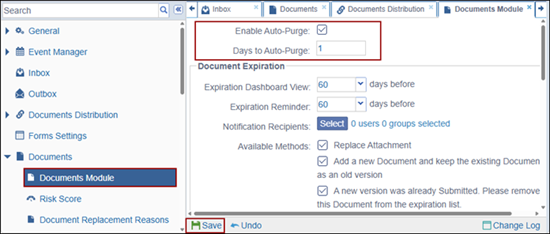
- Expand the Documents setting dropdown and select the Documents Module option.
- Check Enable Auto-Purge checkbox.
- Specify the number of days in the Days to Auto-Purge.
- Click the Save button at the bottom of the page.
Document Expiration Settings
To configure the Document Expiration Settings, follow the steps below:
- Expand the Documents setting dropdown and select the Documents Module
option.
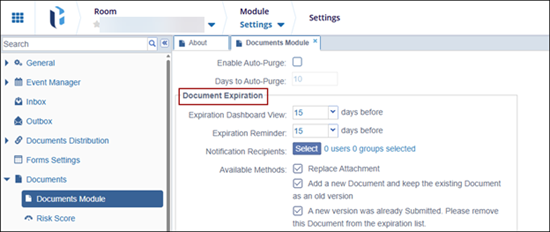
- Within the Document Expiration Section, configure the following settings:
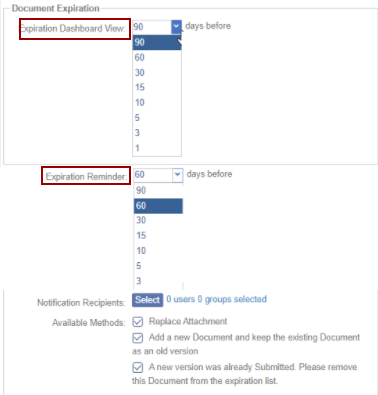
- Expiration Dashboard View: Specify the number of days by clicking and selecting an option from the dropdown. Click Select from the notification recipients section
- Expiration Reminder: Specify the number of days by clicking and
selecting an option from the dropdown.
- Notifications Request:
- Click Select from the notification recipients section
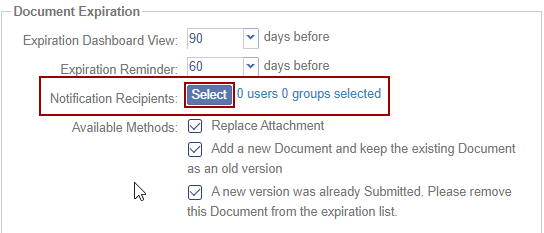
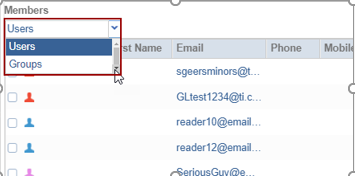
- On the Members pop-up window, click the topmost dropdown and
select Users or Groups
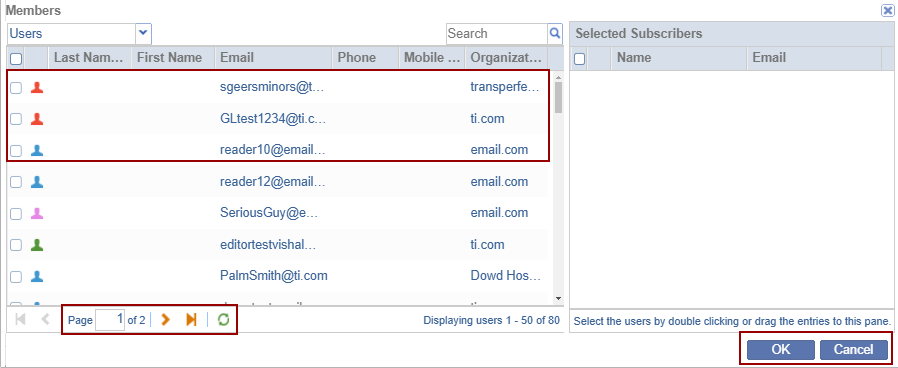
- Drag & Drop and required users to the ‘Selected Subscribers’
section and click OK
- Click Select from the notification recipients section
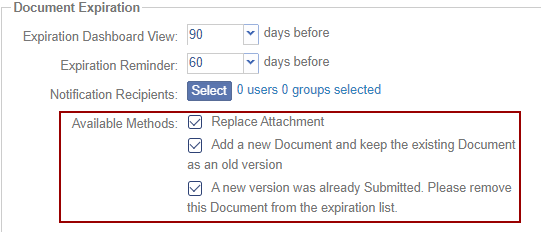
- Available Methods: Check or Uncheck the following checkboxes to enable
or disable the settings respectively
- Replace Attachment: Allows users to replace the file linked to the existing metadata. All document versions remain accessible in the Versions tab of the metadata panel.
- Add a New Document and Keep the Existing Document as an Old Version: Enables users to retain the existing version for reference while adding a new document.
- A new version was already submitted. Please remove this document
from the expiration list: This option indicates that a newer
version of the document has been submitted to the room as a
separate document, and the expiring document should be removed
from the expired/expiring documents list.
Duplicate Check Options
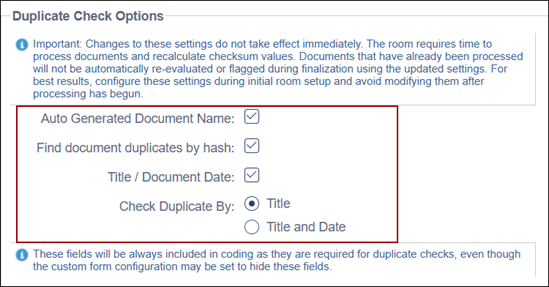
The Duplicate Check Options allow administrators to configure settings that, when enabled, check for duplicate documents based on configurable criteria such as document name, date, and hash value.
To configure the Duplicate Check Options, follow the steps below:
- Check the Auto Generated Document Name checkbox to identify duplicates based on the auto-generated document names.
- Check the Find Document Duplicates by Hash checkbox to identify duplicates by document hash which is an alphanumeric code representing the unique characteristics of a document.
- Check the Title/Document Date checkbox and select either Title or Title and Date
radio boxes.
Automatic Document Name Generation
To configure the Automatic Document Name Generation, follow the steps below:
- Check the Use auto generated document name as file name (export, download, email attachments) checkbox to enable the setting.
- Click the Regenerate Document Names button.

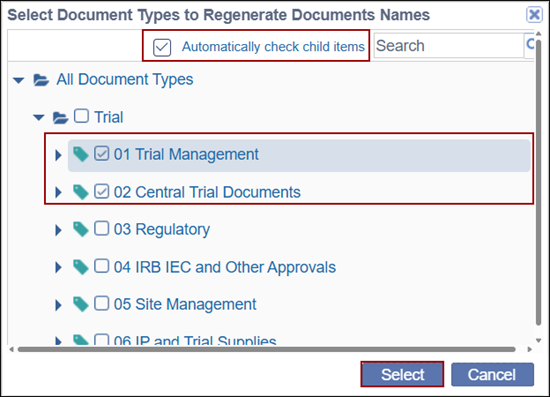
- On the ‘Select Document Types to Regenerate Documents Names’ pop-up window,
expand the following dropdowns and select document types.
- Trial
- Country
- Site
-
Check the ‘Automatically check child items’ checkbox is checked.
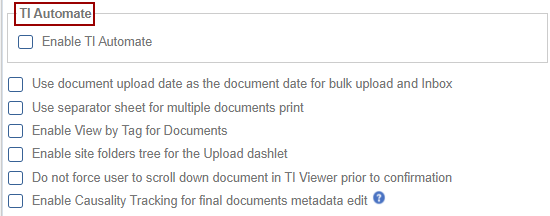
TI Automate
To configure the TI Automate settings, follow the steps below:
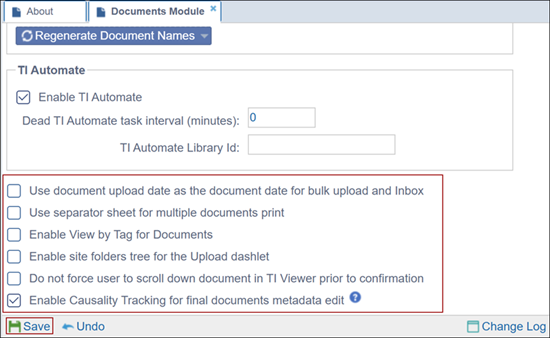
- Select the ‘Enable TI Automate’ checkbox.
- Specify the minutes in the ‘Dead TI Automate task interval (minutes)’ field.
- Specify the TI Automate Library ID.
Additional Settings:
In addition to the above settings, users can configure the following additional settings
by checking their respective checkboxes and click Save.
- Use document upload date as the document date for bulk upload and Inbox: Enabling this option uses the document upload date as the document date for bulk uploads and inbox.
- Use separator sheet for multiple documents print: This option affects the Print function in the Documents module. When users select multiple documents to print, the system first creates a single PDF file containing all the selected documents. This file can then be downloaded or printed locally. Enabling this option adds a separator sheet between each source document in the generated PDF.
- Enable View by Tag for Documents: Enabling this option allows room users to view documents in the Documents module based on the value in the Tag field. Like other metadata fields, the Tag field can be enabled or disabled and assigned to specific documents or all documents.
- Enable site folders tree for the Upload dashlet: This option allows users to view site-related folders within the Documents module and select the appropriate folder for uploading documents.
- Do not force user to scroll down document in TI Viewer prior to confirmation: When enabled, this option removes the requirement for users to scroll through the entire document in the TI Viewer before confirming their action.
- Enable Causality Tracking for final documents metadata edit: Enabling
this option allows Administrators and Document Manager users to modify metadata
for final documents within a study room. This setting has two effects:
- Metadata Modification: Grants permission to update metadata fields for finalized documents and should be requested to provide a reason for making the change.
- Enhanced Flexibility: Ensures greater control over document
information while maintaining proper access restrictions. Mass Coding
will be disabled in the study room.

 Linkedin
 X
X

