
Logout Timer
To configure the Logout Timer settings, follow the steps below.
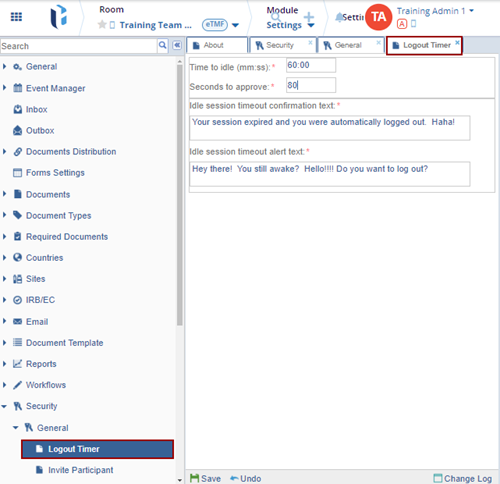
- Expand the Security > General Settings dropdown and select Logout Timer.
- Fill in the required data into the following fields and click Save.
- Time to Idle (mm:ss): Enter the duration in mm:ss format that defines how long a user can remain inactive while still being logged into the system.
- Seconds to Approve: Specify the number of seconds the user is given to respond to the idle session timeout confirmation prompt.
- Idle Session Timeout Confirmation Text: Enter the message that appears when the user has been inactive for the defined period and is prompted to confirm whether to remain logged in.
- Idle Session Timeout Alert Text: Enter the message displayed when
the system automatically logs the user out due to inactivity.
-
The Change Log option, located at the bottom right of the screen, displays the changes made to the logout timer settings in the following columns.
- Item Name
- New Value
- Old Value
- Updated By
- Updated On (with the timestamp)

 Linkedin
 X
X

